

Standby memory holds clean, recently used data Windows can reuse or reclaim. It is part of Available memory; Free is the smaller pool without cached contents. Read Available, Committed, process use and a repeatable symptom together. Do not empty the list just to make the number smaller.
What Windows standby memory means
Windows standby memory describes clean pages kept in RAM as a reusable cache. After an application closes or Windows reads a file, those pages may remain on a standby list. The data can be read from RAM again, or Windows can reclaim the pages for another process. Standby memory is therefore both cached data and available capacity.
Standby is not an application's active working set and does not identify who owns every cached page. Its value changes as programs use files. The number alone cannot tell you whether the PC is healthy or short on memory.
- Standby contains clean cached pages Windows can reuse or reclaim.
- Free contains pages with no useful cached contents.
- A large standby list alone is not evidence of a leak.
- Reusable pages can move without making Free large.
Low Free memory can coexist with healthy Available memory when useful data remains cached.
Standby vs available, free, cached and committed memory
Microsoft defines Available physical memory as Standby, Free and Zero pages. Task Manager's Cached figure includes Standby and Modified, so Cached and Available are not interchangeable. Compare the same labels and tool between snapshots.
Committed memory is virtual memory backed by RAM or the paging file. Commit near its limit deserves attention, but does not measure usable standby memory.
| Label | What it represents | How to read it |
|---|---|---|
| Standby | Clean cached pages grouped for reuse | Check Available and workload |
| Free | Pages without useful cached data | Low alone does not mean out of RAM |
| Available | Standby, Free and Zero pages | Better capacity check than Free alone |
| Modified | Changed pages awaiting a write | Not clean standby cache |
| Cached | Task Manager's Standby plus Modified summary | Not the Available total |
| Committed | Virtual memory backed by RAM or page file | Compare with commit limit |
Record the same counters and workload when comparing two moments.
Why Windows keeps RAM in standby
Empty RAM is not automatically faster. Windows can retain file data and code in otherwise idle memory, then reclaim eligible standby pages when an application requests capacity.
The cache may refill as files are used again. That is normal, not proof that a cleanup failed. Forcing pages out can make the next access read from storage instead of RAM.
Where to read standby memory in Windows
For a quick view, open Task Manager, choose Performance, then Memory. Note In use, Available, Committed and Cached during the same workload. Use Processes or Details to see whether an application is growing; avoid snapshots around unrelated downloads or updates.
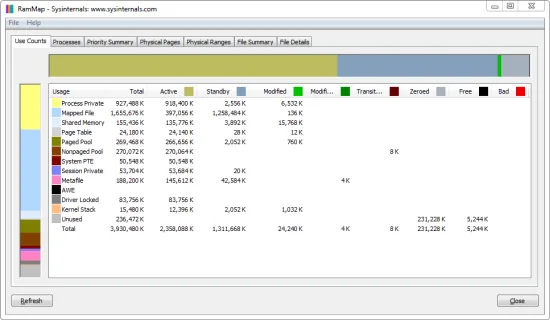
Microsoft RAMMap shows physical-memory lists in more detail. Use Counts and Priority Summary show page categories; Processes helps inspect process-associated use. Keep the view consistent. A snapshot alone does not identify the cause.
- 1
Reproduce one symptom
Use the same application or scene and note when the symptom occurs.
- 2
Record the summary counters
Record Available, In use, Cached and Committed. Standby alone is not proof of pressure.
- 3
Check whether one process is growing
Compare the same application over time. Process or pool growth differs from a large stable cache.
- 4
Inspect physical lists only when useful
Compare Use Counts or Priority Summary with the earlier snapshot. Focus on the category that changed.
- 5
Repeat before changing settings
Repeat the run. Keep a change only if the symptom and readings move together more than once.
When high standby memory deserves investigation
A Windows standby memory reading has no universal threshold. Low Available during a workload, sustained paging or hard faults that coincide with pauses, and commit near its limit provide more context. Short storage bursts and momentary changes can be normal; timing matters.
If use rises continuously, identify what is growing: a process, commit, nonpaged pool or driver allocation. Standby can be reclaimed and rebuilt normally; it is not the same as sustained process or kernel growth.
- Compare the same counters at idle and during the workload.
- Look for a repeated symptom when Available falls.
- Check process or commit growth when use keeps rising.
- Look at storage, drivers and background work if memory readings do not explain the slowdown.
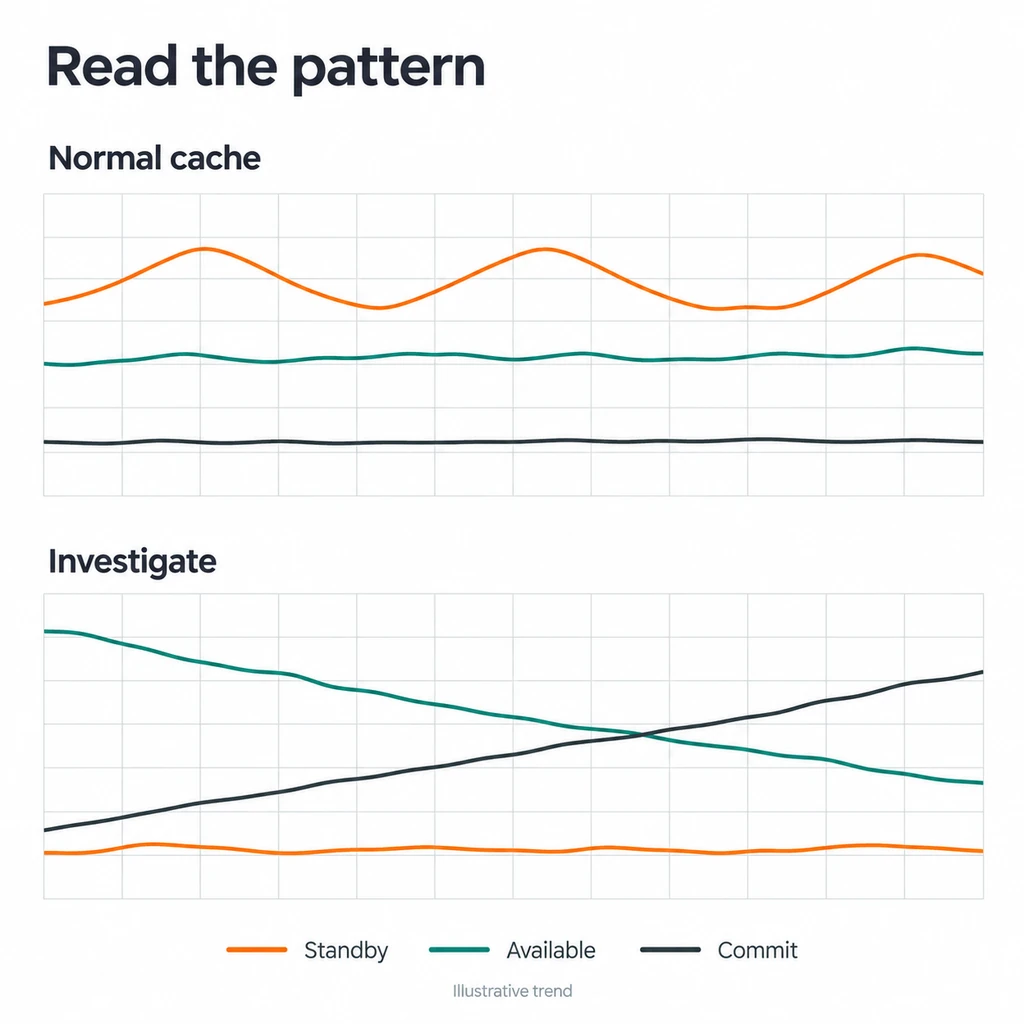
Read Available, commit, workload and symptom together; no single standby number proves a shortage on every PC.
Two examples: a large cache is not always pressure
Two PCs can show several gigabytes of Standby. If Available and commit remain stable and the workload is normal, the value mostly describes reusable data; there is no reason to clear it to increase Free.
If Available repeatedly falls during the same workload, pauses coincide with storage activity, and commit nears its limit, check process growth, paging and RAMMap categories. The pattern narrows the investigation but does not prove Standby caused the issue.
| Observation | Likely reading | Next step |
|---|---|---|
| High Standby, healthy Available, no symptom | Normal cache is plausible | Keep a baseline; do not chase Free |
| Standby changes; Available stays stable | Pages are reused or reclaimed | Compare the same counters later |
| Low Available repeats with paging or pauses | Investigate pressure | Check process, commit, storage and RAMMap |
These are investigation patterns, not fixed thresholds. Normal readings vary by capacity and workload.
Mistakes to avoid when reading the number
Do not assume a high Standby value means an application lost or locked that RAM. Cached and Available are different totals, and Task Manager and RAMMap group data differently.
Do not schedule a purge instead of diagnosing. Free may rise briefly, then fall as Windows caches useful data again. If evidence eventually justifies a controlled test, follow the separate Windows cache guide; routine purging is not recommended here.
- Do not treat Free as a performance target.
- One screenshot cannot diagnose a leak.
- Do not combine cleaners during a test.
- An empty standby list is not a health score.
For ISLC display or purge errors, use the ISLC troubleshooting guide.
Windows standby memory FAQ
Is high standby memory bad?
Not by itself. Standby contains cached pages Windows can reuse or reclaim. Check Available, commit, workload and a repeatable symptom.
Is standby memory part of available RAM?
Yes. Microsoft's memory-performance information includes Standby, Free and Zero pages in Available physical memory.
Why is free memory low when standby is high?
Windows can keep clean file data in Standby rather than Free. Those pages can usually be reclaimed when an application needs memory.
Does clearing standby memory improve performance?
Not generally. Clearing discards useful cache and does not prove it caused a slowdown. Diagnose the repeatable symptom first.
What is the difference between cached and available memory?
Task Manager Cached includes Standby and Modified; Available includes Standby, Free and Zero. The totals are different.
Can standby memory show a memory leak?
No. Look for sustained process, commit, pool or driver-related growth across repeated measurements.
Microsoft references
These Microsoft references define Windows memory counters and RAMMap views.
- Microsoft: Memory Performance Information — Definitions for available physical memory and Windows memory-list performance information.
- Microsoft Sysinternals: RAMMap — Official description of RAMMap and its physical-memory analysis views.