
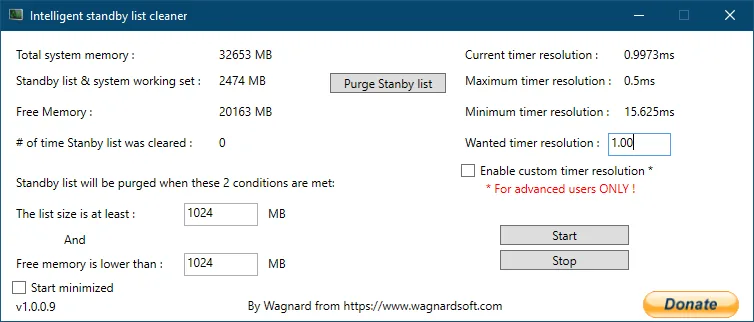
To use ISLC, download the current 1.0.4.8 portable or installer package, verify its SHA-256, place it in a permanent location, open the interface, confirm memory values update and press Start after reviewing the thresholds. Use the settings guide when you are ready to configure ISLC; keep timer and startup changes separate from the first test.
Get ISLC before following the steps
The portable and installer buttons below use current publisher-hosted Wagnardsoft files.
Choose one package. You do not need both for normal use.Before you start using ISLC
A useful how to use ISLC tutorial begins by defining the problem you are testing. ISLC is commonly used when a Windows PC shows repeatable stutter while the standby list is large and available memory is constrained. It is not a general repair tool for every frame drop. Record the game, scene, application sequence or memory pattern that produces the issue so you can compare the same situation later.
Close other memory-cleaning and timer tools during the first test. Multiple utilities can issue overlapping requests and make the result impossible to attribute. Keep Task Manager available, and note installed RAM plus normal available memory. If you plan broader system changes, create a restore point first.
Write down the starting thresholds, polling interval and timer state before monitoring begins. Record the Windows build, power mode and target application too. This small baseline turns a subjective impression into a test you can repeat, and it gives you a known configuration to restore if a later change causes instability.
Plan a stopping condition as well as a success condition. If several comparable runs show no improvement, stop ISLC and return Windows to the original state. A clear stopping rule prevents endless tuning and keeps the first-run process focused on the specific memory symptom you intended to investigate.
- Use the current 1.0.4.8 publisher build.
- Keep one repeatable test scenario.
- Disable competing memory or timer tools.
- Write down the original Windows and ISLC settings.
ISLC Tutorial: Download and Verify the File
Portable and installer are packaging choices. Portable extracts a folder you manage yourself. Installer follows a standard setup flow. Both official 1.0.4.8 files are hosted on download.wagnardsoft.com. Do not use a repackaged installer simply because it has a larger download button or claims to include a preset.
Windows PowerShell can calculate SHA-256 with Get-FileHash. Compare the full output, not only the first few characters. The portable hash begins 128F7B and ends 01B8; the installer begins A5690E and ends 9E30. The complete values are displayed on the homepage and versions page.
- 1
Select one official build
Choose portable for folder-based use or installer for a conventional setup.
- 2
Complete the download countdown
After 15 seconds the browser navigates to the publisher-hosted executable.
- 3
Calculate SHA-256
Run
Get-FileHash 'filename.exe' -Algorithm SHA256in PowerShell. - 4
Compare the complete value
Stop if the file hash does not match the publisher value for that package.
Complete the ISLC first run
Open ISLC with the main window visible. Total system memory should approximately match the installed usable RAM, while standby list and free memory will change as Windows runs. If every value remains zero or the program closes, stop and use the troubleshooting guide rather than changing thresholds blindly.
The Start button begins monitoring; Purge Standby List triggers a manual purge. Do not use manual purge as a repeated ritual. It is primarily useful for a controlled comparison or troubleshooting. The configured thresholds are intended to automate conditional action when both memory conditions are met.
After the first run is stable, use the ISLC settings guide to configure thresholds and polling rate from your own measurements. A tutorial is more reliable when each change has a recorded reason and can be reversed.
- 1
Confirm memory readings
Check total memory, standby list and free memory before starting monitoring.
- 2
Review both thresholds
Understand that the standby minimum and free-memory maximum must be reached together.
- 3
Leave timer settings unchanged
Keep the first test focused on standby-memory behavior.
- 4
Press Start
Run the same workload used for your baseline and watch the purge counter.
- 5
Compare the result
Look for repeatable changes in stutter, available memory and purge frequency rather than a single subjective moment.
If ISLC purges continuously, stop monitoring and review the thresholds. Useful standby cache should not be cleared without a reason.
Run ISLC in the background
Once the first-run configuration is stable, ISLC can remain in the system tray. Version The current build includes Show UI in the tray icon, which helps restore the main window. Enable Start minimized only after the executable is in a permanent folder and you know how to reopen and exit it.
Automatic startup can use Windows Task Scheduler. Confirm the task path after moving or updating a portable build. If you uninstall or delete ISLC, disable the startup option first so Windows is not left with a task pointing to a missing executable.
| Stage | Visible window | Startup | Custom timer |
|---|---|---|---|
| Baseline | Yes | Off | Off |
| Threshold test | Yes | Off | Off |
| Background validation | Optional | Off | Off |
| Daily use | Tray | Optional | Only if separately tested |
How to tell whether ISLC is helping
Use a repeatable test instead of relying on the feeling that a fresh launch is smoother. Compare the same game route, replay, benchmark or application workload. Record frame-time spikes when possible, not only average FPS. Also note whether a purge occurred and whether the issue returned when ISLC was stopped.
If there is no repeatable improvement, leave the utility disabled. Windows normally manages standby memory without assistance, and unnecessary background software adds complexity. If ISLC helps only when available memory is consistently very low, review whether the workload needs more RAM, fewer background applications or page-file changes. The cleaner can be a diagnostic tool without being the final hardware solution.
- Compare the same scenario before and after.
- Track frame-time consistency when gaming.
- Note purge count and available memory.
- Test again after Windows, driver or game updates.
- Stop using ISLC when it adds no measurable value.
How to use ISLC FAQ
Do I press Purge Standby List before every game?
No. Repeated manual purging is not the intended default workflow. Configure and observe the two conditions, then let monitoring act only when both are met.
Should I start ISLC with Windows?
Only after a visible first-run test confirms the configuration works. Put the executable in a permanent path before creating or enabling startup behavior.
How do I know ISLC is running?
The interface should show changing memory values, monitoring should be started, and the tray icon should remain available. The purge counter changes when a purge occurs.
Can I use ISLC without timer resolution?
Yes. Custom timer resolution is optional and separate from standby-list monitoring. Leave it disabled until you have a specific reason to test it.
How do I stop using portable ISLC?
Stop monitoring, disable startup, exit the tray process and then delete the portable folder. Confirm that no scheduled task still points to the old executable.
How do I configure ISLC after the first run?
Complete the baseline first, then review the settings guide. Choose conservative memory thresholds, use a moderate polling rate, leave custom timer resolution off initially, and change one value between comparable tests.
Official usage references
The workflow is based on the publisher's description, current release post and version notes.
- Wagnardsoft ISLC release thread — Downloads, hashes, changelog and support guidance.
- Wagnardsoft ISLC overview — Purpose, recommended usage and memory-monitoring explanation.