
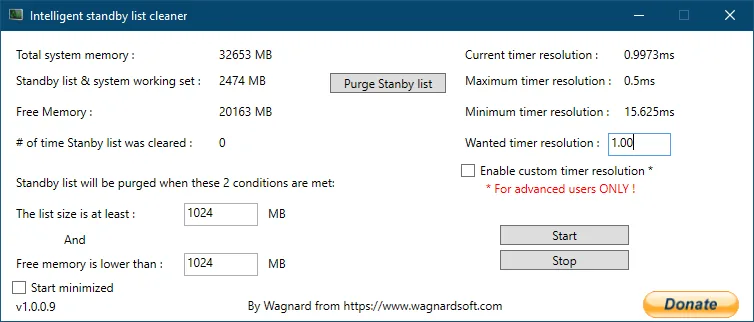
Verify ISLC 1.0.4.8 and its SHA-256, exit duplicate instances, reopen the main window from the tray, and check whether both purge thresholds are true. Use LODCTR only for a documented legacy performance-counter failure; current ISLC versions no longer use those counters in the same way.
ISLC not working: identify the failure first
A program that never opens has a different problem from a program that opens but never purges. Start with the visible symptom and avoid applying every tweak in an old forum reply. Record the version, package type, executable path, Windows version and any message in Event Viewer. If the issue began after an update or folder move, include that change in the diagnosis.
ISLC allows one application instance. If the window seems missing, check the system tray and Task Manager before launching repeated copies. The current build includes Show UI in the tray icon. A minimized instance may be working normally even though the main window is not visible.
When ISLC is not working, define what working behavior should look like for that feature. A working monitor shows changing memory values, a working automatic purge waits for both thresholds, and working startup opens the expected executable from its permanent path. These separate checks prevent a healthy feature from being mistaken for a failure elsewhere.
ISLC not working after a folder move usually requires a path check before a system repair. If ISLC not working starts immediately after an update, verify the new package and capture the matching error. Keep the executable location fixed while comparing symptoms so that the test changes only one variable.
| Symptom | First check | Likely area |
|---|---|---|
| Nothing opens | Task Manager, file hash, security prompt | Existing instance, blocked or damaged file |
| Window appears then closes | Event Viewer and current version | Runtime, file integrity or legacy counter issue |
| Memory values stay at zero | Restart current build and inspect errors | Monitoring initialization |
| No automatic purge | Both configured thresholds | Expected condition logic or aggressive assumptions |
| No startup after sign-in | Scheduled task executable path | Moved portable folder or task permissions |
| Window missing in background | Tray icon Show UI command | Minimized state |
Verify the ISLC file and current version
Troubleshooting an old or repackaged build wastes time. The current official support thread lists 1.0.4.8. Compare the filename, download host and SHA-256 against the versions page. If the hash differs, delete the file and download it again from Wagnardsoft rather than adding antivirus exclusions or changing Windows settings.
The portable build must finish extracting before the application is used. Keep all included files together. Older publisher support responses note that missing companion files and running from protected locations caused problems in early builds. A normal user-controlled folder is easier to maintain than a temporary download or a partially extracted archive.
Before repairing counters or startup, verify that the executable is still the current publisher build. The Wagnardsoft content page checked on October 8, 2026 still names 1.0.4.8. A version mismatch can look like a broken counter, so keep the file check separate from the Windows repair steps.
- Use version 1.0.4.8 unless Wagnardsoft support requests another build.
- Confirm the domain is download.wagnardsoft.com.
- Keep extracted portable files together.
- Move the folder only while ISLC is stopped, then review startup configuration.
ISLC Performance Counter Corrupted: Zero Values or Closing
First exit every ISLC process, restart Windows and open the current build from its permanent folder. Check Event Viewer under Windows Logs and Application for an entry at the same time as the failure. Preserve the exception text before attempting a repair. A current build that still fails should be reported with the Windows version, ISLC version and relevant log entry.
Older ISLC versions used Windows Performance Counters and could fail when those counters were disabled or damaged. Historical Wagnardsoft guidance recommended running LODCTR /R twice from an elevated Command Prompt and rebooting. It also suggested checking disabled counters with lodctr /q | find "Disabled". However, the 1.0.4.0 changelog says Performance Counters are no longer used. That makes LODCTR a legacy, symptom-specific repair rather than the first step for 1.0.4.8.
Do not paste commands into an elevated terminal without understanding their scope. Rebuilding counters affects Windows performance-counter configuration across the system. Create a restore point, capture the error and prefer current publisher support when the failure does not match the documented legacy pattern.
If the error specifically says performance counter corrupted, preserve the Event Viewer details and check whether the symptom belongs to an older ISLC build. ISLC 1.0.4.0 removed its dependence on Performance Counters, so do not apply LODCTR as a universal fix for the current release.
- 1
Restart with the current build
Exit duplicate processes, reboot and open ISLC 1.0.4.8 from a complete folder.
- 2
Read the application log
Use Event Viewer to capture the module and exception associated with the close event.
- 3
Check current release notes
Determine whether the error matches a known issue or already-fixed old-version problem.
- 4
Use legacy repair only when relevant
Apply LODCTR guidance only for a confirmed performance-counter symptom and with administrative care.
- 5
Report reproducible details
Provide Windows build, ISLC version, package type, path and error text to Wagnardsoft support.
ISLC 1.0.4.0 removed its dependence on Performance Counters. Do not present an old LODCTR fix as a universal current solution.
Why ISLC is not purging the standby list
No purge does not automatically mean ISLC is broken. Automatic cleaning can be working correctly while it waits for both conditions at the same time: the standby list is at least the configured amount and free memory is lower than its configured amount. If available memory remains healthy, ISLC should not purge solely because standby cache exists.
Confirm that monitoring is started and that the displayed values update. Then compare each value with its threshold. If one condition never becomes true, the observed behavior is expected. Avoid raising the free-memory threshold until ISLC purges constantly; that can turn useful cache into unnecessary churn. Use the settings guide to choose values based on real workload measurements.
- Check that Start monitoring is active.
- Read both current values and both thresholds.
- Remember the two conditions use AND logic.
- Use manual Purge only as a controlled diagnostic action.
- Do not treat a zero purge count on a healthy system as a failure.
Fix ISLC not starting with Windows
ISLC can create or remove a Windows scheduled task when its startup setting changes. Portable users commonly break that reference by moving, renaming or deleting the folder after the task is created. Put the current executable in its permanent location, open ISLC manually and toggle the startup option so the task can be recreated with the correct path.
Open Task Scheduler and inspect the action path if startup still fails. Confirm that the user account, executable location and permissions match the current installation. A working task points to the current executable and permitted user context. Do not create multiple overlapping startup entries in the Startup folder, registry and Task Scheduler. One documented method is easier to disable and diagnose.
- 1
Stop and exit ISLC
Ensure the tray process is closed before moving or updating files.
- 2
Set the final folder
Place the portable build where it will remain, or complete the installer setup.
- 3
Recreate startup
Open ISLC and disable then re-enable its startup/minimized setting.
- 4
Inspect Task Scheduler
Confirm the action points to the existing 1.0.4.8 executable.
- 5
Test a normal sign-in
Restart Windows and use Show UI from the tray to confirm the process loaded.
Fix update checks and a missing ISLC window
Version 1.0.4.8 specifically improves update-check robustness, so an older build that cannot find updates should be replaced through the publisher release thread rather than trusted to repair itself. Firewall, DNS or security filtering can still block an update request. The download page can be checked manually when the built-in notification is unavailable.
When ISLC is running but the window is missing, open the system tray overflow area, find the ISLC icon and use Show UI. If the icon is absent, check Task Manager. End a stuck process only after noting its state, then reopen the current executable. Repeatedly launching new copies will not work because ISLC is designed to allow one instance.
Avoid downloading an update from an unrelated pop-up or third-party prompt. Return to the Wagnardsoft release thread when the in-app check is uncertain.
ISLC troubleshooting FAQ
Why is ISLC not working after an update?
If ISLC is not working after an update, verify the file, hash, executable path and package contents first. Then check for an existing instance and capture the Event Viewer error before applying a repair.
Why does ISLC show zero for memory?
Restart the current complete build and inspect application errors. Old versions could fail on damaged Performance Counters, but 1.0.4.0 removed that dependency, so current symptoms need current evidence.
Why is the standby list not being cleared?
Both configured conditions must be true while monitoring is started. Healthy available memory can correctly prevent a purge even when standby cache is large.
Why does ISLC not start with Windows?
The scheduled task may point to a moved portable executable. Put ISLC in its permanent path, recreate the startup option and inspect the Task Scheduler action.
Where did the ISLC window go?
Check the system tray and use Show UI, a command added in version 1.0.4.8. Also check Task Manager for the single running instance.
Should I exclude ISLC from antivirus scanning?
Not by default. First verify the publisher URL and SHA-256. A narrowly scoped exclusion is a troubleshooting measure that reduces scanning coverage and should be used only when justified.
How do I fix an ISLC performance counter corrupted error?
First verify the current file, hash, Windows version and exact error. Older releases used Performance Counters, but ISLC 1.0.4.0 and later changed that behavior; use LODCTR only when the documented legacy symptom and publisher guidance match.
Troubleshooting sources
Current behavior and historical fixes are distinguished using the maintained Wagnardsoft thread and changelog.
- Wagnardsoft ISLC release and support thread — Version history, legacy LODCTR guidance, official files and community support context.
- Wagnardsoft ISLC overview — Publisher usage recommendations and software description.