
Use the current ISLC download for Windows 11—version 1.0.4.8—from the Wagnardsoft-hosted portable or installer link. Verify the file and hash, run the basic memory monitor first, and enable custom timer resolution only if a controlled comparison gives you a specific reason.
Download ISLC for Windows 11
Choose the current portable/self-extracting build or the Windows installer. Both URLs are hosted by Wagnardsoft and were checked on September 18, 2026; the version remains 1.0.4.8.
ISLC Download Wiki is independent and does not mirror or modify these files.Does ISLC work on Windows 11?
Wagnardsoft describes ISLC as a utility for Windows 10 Creators Update and higher versions of Windows. The public changelog contains multiple Windows 11 entries, which is stronger evidence than relying on a generic third-party compatibility badge. Version 1.0.2.8 fixed timer resolution with Windows 11, and version 1.0.2.9 added an option to use GlobalTimerResolutionRequests so the timer can behave more like the Windows 10 model.
The current 1.0.4.8 build is therefore the appropriate download to test on a supported Windows 11 PC. Compatibility does not mean every setting is beneficial on every system. Windows builds, power plans, security policies, hardware timers, games and background applications can all change observed behavior. Begin with the memory monitor and leave custom timer resolution off until the basic workflow is stable.
ISLC is a desktop utility, not a Microsoft Store app. Windows may display a security prompt when an executable is downloaded from the web. Confirm that the filename and source match the publisher link, calculate the SHA-256 value when provenance matters, and do not bypass a warning for a file obtained from an unrelated mirror.
As of September 18, 2026, the verified Windows 11 download remains version 1.0.4.8. Check the publisher release thread again when freshness matters because a search result or older page title may lag behind the current file.
- Current version checked: 1.0.4.8.
- Portable SHA-256: 599315A1852B951E0ADAE2BE46FCE30BB32AAB7F8A4C9112471A5A88320E3085.
- Installer SHA-256: 6292D1C55F671AEF93C4E8E2DF554753E7457B361771844FE92A812801956E3C.
- Publisher host: download.wagnardsoft.com.
ISLC download for Windows 11: installation steps
The portable and installer packages run the same type of memory-monitoring utility, but they create different maintenance expectations. Portable is useful when you want the application files in a known folder and are comfortable managing that folder. Installer is useful when you want a guided setup and a normal installed-program workflow.
Whichever package you choose, place ISLC in its permanent location before enabling Start minimized. Startup behavior can depend on a scheduled task that references the executable path. Moving a portable directory later may leave the task pointing to the previous location.
- 1
Download from the publisher host
Use one of the two buttons above and allow the preparation countdown to finish. Confirm the domain is download.wagnardsoft.com.
- 2
Check the SHA-256 hash
Open PowerShell in the download folder and run
Get-FileHash '.\ISLC v1.0.4.8.exe' -Algorithm SHA256, adjusting the filename for the installer if needed. - 3
Extract or install
Run the portable self-extractor and select a stable directory, or start the setup executable and follow the installer prompts.
- 4
Open ISLC normally
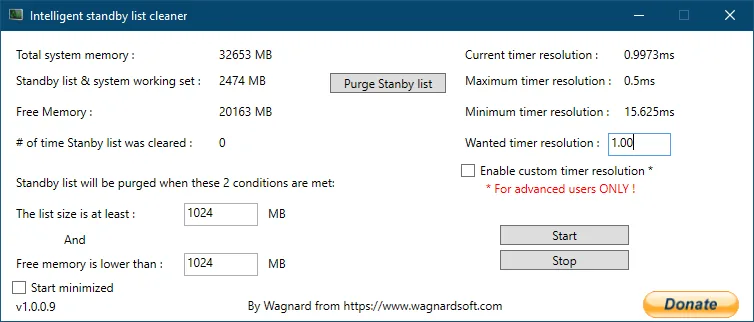
For the first run, keep the window visible. Confirm total memory, standby list and free memory show plausible values.
- 5
Start monitoring
Use the Start control after reviewing thresholds. Observe a normal workload before changing the timer or startup options.
Create a Windows restore point before combining ISLC with broader system-tuning changes. A restore point is especially useful when several tools or registry changes are being tested together.
Windows 11 timer resolution and ISLC
Timer resolution determines the granularity Windows uses for certain timing operations. Applications can request different timer behavior, and Windows 11 changed how timer requests are handled. ISLC exposes current, maximum and minimum timer information and can request a wanted value when its custom option is enabled.
This feature is often discussed in gaming optimization guides, but it should not be confused with the standby-list cleaner. You can use ISLC for memory monitoring without enabling a custom timer. If you decide to test timer resolution, record frame-time behavior, idle power use, sleep behavior and application stability. A value that looks smaller in the interface is not proof of lower end-to-end input latency.
Laptops deserve additional caution. More frequent timer activity can affect power behavior, and results on AC power may not match battery mode. Windows updates can also change scheduler and timer behavior. Recheck the setting after major Windows updates rather than assuming an old recommendation is permanent.
| Option | Recommended first test | Reason |
|---|---|---|
| Standby monitoring | Enabled after thresholds are reviewed | This is ISLC's main memory function |
| Custom timer resolution | Disabled | Separates memory results from timing changes |
| Start minimized | Disabled for first run | Keeps values and errors visible |
| Startup task | Enable after stable testing | Avoids hiding a broken path or configuration |
Windows Security, permissions and file verification
ISLC needs access to system memory information and uses Windows features such as the system tray and scheduled tasks. Run the current publisher build and review any elevation prompt rather than automatically approving it. If security software blocks the file, verify the download domain and hash first. Do not create broad antivirus exclusions simply because a random guide tells you to do so.
The publisher's main content page recommends excluding the ISLC folder from antivirus scans to prevent interference, but an exclusion reduces scanning coverage. Treat that as a troubleshooting measure, not the default first step. If an exclusion is genuinely required, scope it to the confirmed ISLC directory and remove it when the software is no longer used.
- Keep the executable in a stable, user-controlled folder.
- Verify publisher-hosted URLs and SHA-256 values before troubleshooting security warnings.
- Avoid downloading repackaged builds with bundled installers or unrelated offers.
- Disable automatic startup before removing a portable installation.
Common ISLC problems on Windows 11
If the application opens and immediately closes, shows zero memory values or does not start at sign-in, do not compensate by repeatedly reinstalling or applying unrelated registry tweaks. First confirm the current version and file integrity. Then check whether the portable folder moved, whether the startup task points to a valid path and whether Windows performance counters are functioning.
Older publisher guidance suggests rebuilding performance counters with LODCTR /R from an elevated Command Prompt and rebooting when earlier versions cannot initialize counters. Modern ISLC releases no longer use performance counters in the same way, according to the 1.0.4.0 changelog, so apply that command only when the current symptoms and publisher guidance justify it. The dedicated troubleshooting guide separates current checks from legacy fixes.
Read the exact error and preserve a copy of the current configuration before resetting settings or deleting files.
ISLC Windows 11 FAQ
Can I download ISLC on Windows 11?
Yes. Wagnardsoft's version history includes Windows 11-specific changes, and the current official thread provides ISLC 1.0.4.8 portable and installer builds.
Which ISLC download should I use on Windows 11?
Choose portable for a self-contained folder or installer for a conventional setup. Both current files are hosted by Wagnardsoft and run the same utility.
Do I need to enable custom timer resolution on Windows 11?
No. Standby-list monitoring works independently. Leave custom timer resolution disabled during the first test, then enable it only for a controlled comparison if you understand the tradeoffs.
Why does Windows warn me about the ISLC executable?
Windows can warn about executables downloaded from the internet. Confirm that the URL is the publisher host, compare the SHA-256 hash and review the prompt. Do not bypass warnings for files from unrelated mirrors.
Does ISLC improve Windows 11 gaming performance?
It may help a subset of systems where standby-memory behavior is associated with stutter, but it is not a guaranteed FPS or latency improvement. Test repeatable scenarios before and after.
What is the latest ISLC download for Windows 11?
The verified publisher-hosted Windows 11 download is ISLC 1.0.4.8 as of September 18, 2026. Confirm the current release thread and compare the file hash before running a future update.
Windows 11 compatibility sources
These first-party pages provide the current files, version history and publisher description used in this guide.
- Wagnardsoft ISLC release thread — Current version, official downloads, hashes, Windows 11-related changelog and support discussion.
- Wagnardsoft ISLC overview — Publisher explanation of supported Windows generation and recommended usage.