
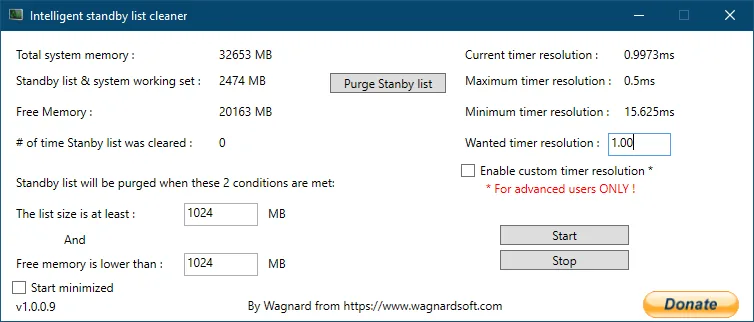
There is no universal best ISLC setting. Start with custom timer resolution disabled, record available and standby memory during the workload you care about, then choose conservative thresholds and a moderate polling interval. For 16GB or 32GB RAM, use capacity as context—not as a fixed preset—and change one setting at a time.
How ISLC settings control a purge
Intelligent Standby List Cleaner watches two conditions. First, the standby list must be at least the configured size. Second, free memory must be lower than the configured limit. ISLC requests a purge only when both conditions are true. This AND relationship is important: setting one threshold aggressively does not guarantee constant cleaning if the other condition is not met.
Windows standby memory is cached data, not automatically wasted memory. Clearing it too often can remove useful cache and create more disk activity later. The goal is therefore not to keep the standby list at zero. A useful configuration leaves Windows alone during normal operation and acts only when cached memory is large while genuinely available memory is becoming constrained.
- Standby list threshold: the minimum cached standby memory required before a purge can occur.
- Free memory threshold: the available-memory level below which the second purge condition becomes true.
- Polling rate: how frequently ISLC checks the current values and conditions.
- Wanted timer resolution: an optional advanced timing request, separate from standby-list cleaning.
Do not judge the configuration from idle desktop values alone. Observe the PC during the game, application or multitasking pattern that originally led you to test ISLC.
Choose standby list and free memory thresholds
There is no official universal table that turns installed RAM into perfect ISLC values. Two PCs with 16 GB can have very different background services, game memory use, page-file behavior and available-memory patterns. Treat RAM capacity as context, then use your own measurements to choose a conservative starting point.
Open Task Manager and ISLC before starting the target workload. Note the normal available-memory range, the lowest repeatable value and whether standby memory grows before the stutter or slowdown you are investigating. A free-memory limit should sit below ordinary healthy operation, not inside the range the PC reaches every few seconds. A standby threshold should represent a meaningfully large cache for that system rather than a value copied from a screenshot.
After choosing initial values, test across several comparable sessions. If ISLC never purges and the system is stable, that may be a perfectly good result. If it purges constantly, the values are probably too aggressive. If a repeatable stutter disappears only when the relevant conditions are met, document the before-and-after state before making further changes.
Good ISLC settings should be easy to explain from the measurements you recorded. Keep a short configuration note beside each test so your ISLC settings can be restored after a Windows update, hardware change or unsuccessful experiment.
For 16GB and 32GB systems, the useful starting point is the same measurement process: record the lowest repeatable available memory and the standby-list size during the target workload. Do not treat a number shared for one RAM capacity as a universal best ISLC setting.
- 1
Record a baseline
Run the workload without changing ISLC settings. Note installed RAM, lowest available memory, typical standby-list size and when the issue occurs.
- 2
Set conservative limits
Choose values that do not trigger during ordinary light use. The thresholds should represent actual memory pressure on your system.
- 3
Test one workload
Use the same game area, benchmark path or application sequence so the comparison is meaningful.
- 4
Review purge frequency
Occasional condition-based action is easier to justify than repeated cleaning with no observed benefit.
- 5
Adjust one variable
Change only one threshold between test runs. Multiple simultaneous changes make the result difficult to interpret.
ISLC Polling Rate: What Should You Use?
Polling rate is the interval between checks. A very short interval can react sooner after both memory conditions become true, but it also asks the application to check more frequently. A longer interval reacts less quickly but reduces wakeups. Because memory pressure usually develops over more than a few milliseconds, the smallest available polling number is not automatically the best ISLC setting.
Begin with a moderate interval and confirm that the displayed memory values update normally. If the target issue is brief and the thresholds are reached between checks, a shorter interval may be worth testing. If the utility runs all day and the system is already stable, there is little reason to chase maximum check frequency. The 1.0.3.5 changelog notes lower CPU utilization, but efficient code still does not make every aggressive setting necessary.
| Polling approach | When it fits | Tradeoff |
|---|---|---|
| Moderate interval | General monitoring and first-time setup | Balanced response and process activity |
| Shorter interval | A repeatable workload reaches both thresholds quickly | More frequent checks; test for measurable value |
| Longer interval | Background monitoring where instant reaction is unnecessary | Slower response after conditions are reached |
A polling rate should be selected for the monitoring job. It is not a latency score, and a lower number does not prove a faster game.
Custom timer resolution in ISLC
Timer resolution controls are distinct from standby-memory cleaning. ISLC can display the current, maximum and minimum timer values and can request a wanted timer resolution when the option is enabled. Windows 11 changed timer behavior, and the ISLC version history includes specific Windows 11 fixes plus a GlobalTimerResolutionRequests option in older releases.
Leave the custom timer option disabled for the first memory-cleaning test. If you later test it, record the current timer type and value, power mode, game behavior and idle power use. Some applications make their own timing requests, and Windows may handle requests differently across releases. Treat any claimed latency improvement as system-specific until you reproduce it with a controlled comparison.
- Do not enable custom timer resolution merely because a preset tells you to.
- Test on AC power and battery separately when using a laptop.
- Confirm the requested value is released after ISLC stops.
- Return to the previous setting if power use, sleep behavior or application stability changes.
Start minimized and monitor ISLC safely
ISLC can run in the system tray and can configure a Windows scheduled task for startup. Complete the first tests with the interface visible so you can confirm that memory values update and see when the purge counter changes. Enable Start minimized only after the executable is in its permanent folder and the configuration behaves as expected.
If you use the portable build, do not move or rename its folder after creating the startup task without reopening ISLC and reviewing startup behavior. If you stop using the utility, disable automatic startup before deleting the folder. The current build includes a Show UI command to the tray icon, making it easier to restore the window after starting minimized.
Keep a short record of every ISLC settings change. A reversible configuration is safer and easier to troubleshoot than an undocumented preset.
ISLC settings FAQ
What are the best ISLC settings for 16 GB of RAM?
There is no single best preset for every 16 GB system. Measure normal available memory and standby-list growth during the target workload, choose conservative thresholds outside ordinary light-use behavior, and test one change at a time.
Should ISLC purge the standby list constantly?
No. Standby memory is useful cache. Constant purging can indicate thresholds that are too aggressive. ISLC is intended to act when both the standby-list and low-free-memory conditions are reached.
Is a lower ISLC polling rate better?
Not automatically. A shorter interval checks more often, while a longer interval reduces wakeups. Use the lowest frequency that reacts appropriately to your actual memory pattern without treating the number as a performance score.
Should I enable custom timer resolution?
Leave it disabled during your first memory test. Timer resolution is an advanced, separate feature. Enable it only for a specific controlled test and compare performance, stability and power behavior.
Why does ISLC never purge memory?
Both configured conditions must be true. Check whether the standby list reaches its threshold and whether free memory falls below its threshold at the same time. Also confirm that monitoring is started.
What are the best ISLC settings for 32 GB of RAM?
There is no fixed 32GB preset. Record the workload's normal and lowest available memory, choose conservative thresholds, and test whether the observed issue changes. The larger capacity may mean the free-memory threshold should be different from a 16GB system, but the measurement should decide.
How do I configure ISLC without copying a preset?
Record a baseline, set conservative standby-list and free-memory limits, use a moderate polling rate, keep custom timer resolution off at first, and compare the same workload after changing one value.
Official ISLC references
Configuration details and version behavior should be checked against the publisher's current release material.
- Wagnardsoft ISLC release and support thread — Current downloads, changelog history, checksums and publisher troubleshooting notes.
- Wagnardsoft ISLC software page — Publisher overview of standby-list monitoring and recommended usage.