
Open Task Manager and reproduce the problem before changing anything. If available memory stays low while the standby list is unusually large, use RAMMap's Empty menu for a single comparison test. If the symptom repeatedly returns, configure ISLC with conservative thresholds and compare the same workload again. Windows normally reclaims cached standby memory itself, so routine clearing is usually unnecessary.
What RAM cache and standby memory mean
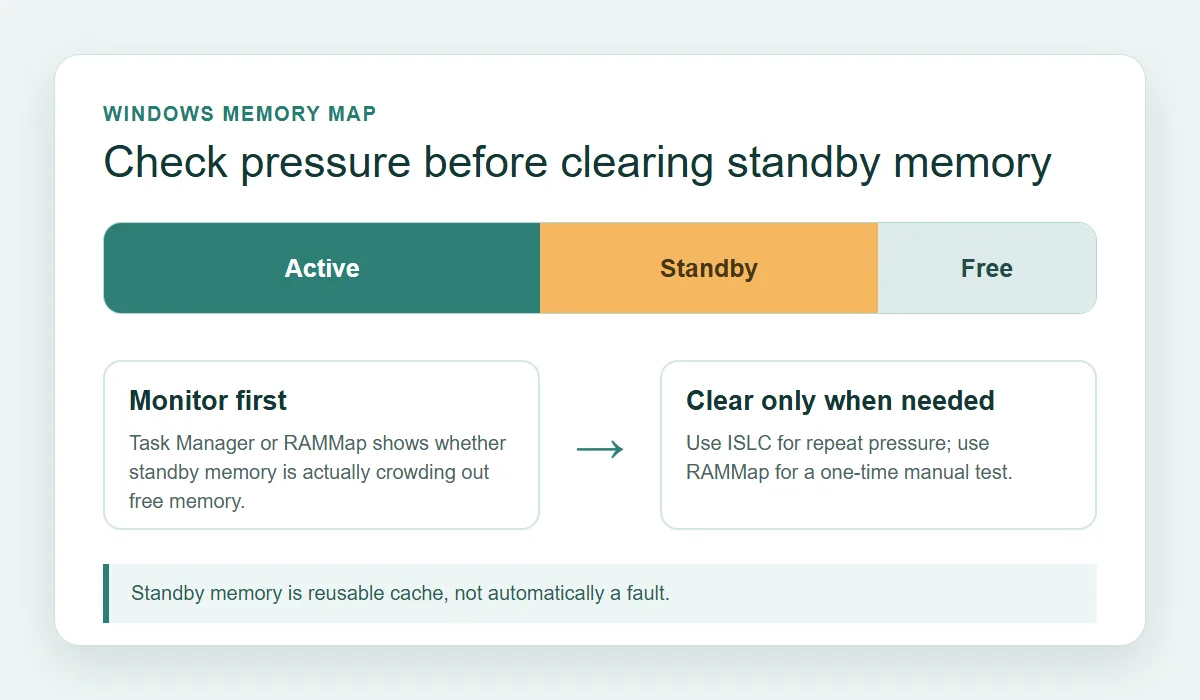
Windows uses otherwise idle physical memory to cache recently used code and data. In Task Manager and RAMMap, much of that reusable cache appears as standby memory. A large standby value can therefore be normal because cached pages can be reassigned when applications need memory.
The useful question is whether a repeatable workload shows low available memory, paging, hitching or delayed allocation at the same time. Clearing the cache removes potentially useful data and may cause applications to read it from storage again, so treat the action as a measured before-and-after test rather than a permanent ritual.
- Active memory is assigned to processes, drivers or Windows.
- Standby memory contains cached pages Windows can usually reuse.
- Free memory contains no useful cached data, so more free memory is not automatically better.
- A stable symptom and low available memory matter more than a single large cache number.
Check whether Windows 11 actually needs a RAM cache clear
Begin with a repeatable scenario: the same game map, creative project, virtual machine or browser session. Open Task Manager, choose Performance, select Memory and watch Available, Committed and Cached while the issue occurs.
If available memory remains healthy and the workload does not page heavily, clearing RAM cache is unlikely to solve the problem. Investigate the process using memory, background startup apps, storage latency, driver issues or insufficient physical RAM instead.
- 1
Reproduce the slowdown
Use the same application, file, game area or workload.
- 2
Record Task Manager values
Note Available, Cached and Committed memory before clearing.
- 3
Close avoidable background work
Pause updates, launchers and browsers that would change the memory picture.
- 4
Choose one clearing method
Test RAMMap or ISLC, not several cleaners at once.
Do not use a memory cleaner to hide a steadily growing process. If one application's memory keeps increasing, investigate a leak, update or workload limit.
Clear standby memory automatically with ISLC
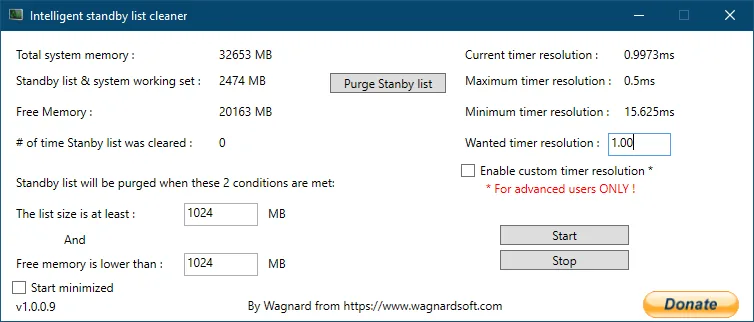
ISLC monitors standby-list size and free memory, then purges only when both configured conditions are met. Download it through the verified ISLC download page, keep the executable in a permanent folder and run the first test without enabling startup automation.
Start conservatively. The list-size threshold should avoid constant clearing, and the free-memory threshold should reflect installed RAM and the normal workload. The ISLC settings guide explains 16 GB, 32 GB and higher-memory starting points, polling rate and timer-resolution boundaries.
- 1
Verify the current file
Confirm version 1.0.4.8, filename, byte size and SHA-256.
- 2
Set both memory thresholds
Choose a standby-list minimum and a free-memory trigger.
- 3
Start monitoring manually
Leave startup tasks disabled until the behavior is understood.
- 4
Compare the same workload
Keep ISLC only if purges are infrequent and improvement is repeatable.
ISLC's custom timer resolution is separate from clearing standby memory. Leave it disabled unless you have a measured reason and understand the trade-offs.
Use Microsoft RAMMap for a one-time manual clear
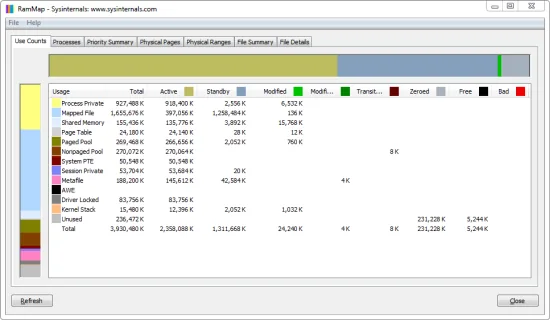
RAMMap is Microsoft's Sysinternals memory-analysis utility. It shows active, standby, modified, driver-locked and other physical-memory categories in more detail than Task Manager. It is the better first choice when you want to test whether emptying a standby list changes a specific symptom.
Download RAMMap from Microsoft, run it as administrator and review the Use Counts and Physical Pages tabs. From the Empty menu, choose Empty Standby List for the comparison test. Avoid clicking every Empty command because the other lists represent different memory states. Read the RAMMap Download guide for the verified v1.63 source and Windows 11 workflow.
- 1
Open the official RAMMap build
Use Microsoft Sysinternals rather than a third-party mirror.
- 2
Capture the current memory map
Record standby, active and free values.
- 3
Empty only the standby list
Choose Empty Standby List once, then repeat the workload.
- 4
Watch for cache rebuilding
Standby memory may rise again as Windows caches files; that is normal.
ISLC vs RAMMap vs restarting: which method fits?
RAMMap is strongest for inspection and a one-time test. ISLC is appropriate only after a repeatable standby-pressure pattern is established. Restarting creates a broad reset but cannot identify whether standby memory caused the issue.
Do not create a second automatic task that runs EmptyStandbyList.exe alongside ISLC. Multiple cleaners make the purge history difficult to explain and can turn normal cache rebuilding into repeated disk reads.
| Method | Best use | Automation | Main limitation |
|---|---|---|---|
| Task Manager | Quick pressure check | None | Does not expose every memory list |
| Microsoft RAMMap | Detailed diagnosis and one-time clear | Manual | Several Empty commands add diagnostic noise |
| ISLC | Controlled repeated standby purging | Threshold based | Needs conservative settings and evidence |
| Restart Windows | Broad reset after updates or a stuck process | Manual | Resets many variables and proves little |
Common mistakes, limits and stopping rules
A lower Cached number is not a performance score. Windows deliberately uses spare RAM to reduce storage access, and the cache will rebuild as programs run. Clearing too frequently can increase reads without addressing the real bottleneck.
Stop if the same workload shows no repeatable improvement after two or three controlled comparisons. Persistent low available memory may require closing a heavy process, reducing a workload, updating software, checking a leak or adding physical RAM. For startup, tray or counter problems, use the ISLC troubleshooting guide.
- Do not clear cache before every game launch without a measured reason.
- Do not combine ISLC, RAMMap scripts and third-party RAM cleaners.
- Do not treat timer resolution as a RAM-cache setting.
- Do not download RAMMap or ISLC from an unverifiable mirror.
- Do keep a simple before-and-after record and accept no improvement as a valid result.
RAM cache clearing FAQ
Is it safe to clear RAM cache in Windows 11?
A one-time standby-list clear with a trusted tool is generally diagnostic, but it can discard useful cache and cause extra disk reads. Save work and avoid repeated aggressive clearing.
Does clearing standby memory increase FPS?
Not reliably. It may change a repeatable hitch on a system with real standby pressure, but it cannot fix a GPU, CPU, driver, storage or game-engine bottleneck.
How often should I clear RAM cache?
There is no recommended schedule for a healthy Windows 11 system. Use a manual test first and keep automation only when a repeated pattern justifies it.
Can I clear RAM cache without RAMMap?
Yes. Windows reclaims cache automatically, a restart performs a broad reset, and ISLC can purge the standby list by thresholds.
Should I schedule EmptyStandbyList.exe?
A blind schedule is harder to validate and may clear useful cache when no pressure exists. Do not run it alongside ISLC.
Why does cached memory return after I clear it?
Windows caches files and code again as applications run. Rebuilding standby memory is expected and does not mean the clear failed.
Official references
These sources were checked on September 18, 2026. The guide links to publisher and Microsoft pages rather than republishing software.
- Microsoft Sysinternals RAMMap — Official utility description, download and screenshot used for the manual diagnostic method.
- Wagnardsoft ISLC support thread — Maintained publisher support thread used to verify ISLC version 1.0.4.8 and current files.