

For most Windows 11 PCs, start with Task Manager and reproduce the memory problem before installing a RAM cleaner. Choose RAMMap when you need to see which physical-memory categories are involved. Choose ISLC when standby memory repeatedly grows while available memory becomes constrained and you want visible thresholds. Treat EmptyStandbyList.exe as a limited command-line test, not as a universal performance fix.
What a RAM cleaner can and cannot do
A RAM cleaner is usually a utility that tries to reclaim a particular class of memory, close background activity or expose memory pressure more clearly. That label covers very different products. Some tools inspect physical-memory lists, some request a standby-list purge, and some simply advertise an aggressive one-click cleanup. Comparing the label alone is not enough.
Windows uses free, active, modified and standby memory for different purposes. Standby pages are cached data that can often be reused quickly, while active working sets are supporting running processes. A large standby value can be normal when the PC has available memory. Clearing it may reduce a number temporarily without fixing a leak, a slow drive, a driver allocation, a page-file problem or a workload that needs more physical RAM.
The useful question is therefore not ‘How do I keep RAM empty?’ It is ‘Which memory condition coincides with the symptom, and which reversible test can show that connection?’ That framing keeps a RAM cleaner from becoming an unexplained background task.
- Good use: measure a repeatable memory condition and compare the same workload before and after one controlled change.
- Weak use: purge memory because Task Manager shows cached data or because a guide promises an automatic FPS boost.
- Important limit: a successful purge proves that a list changed; it does not prove that the original performance problem was caused by that list.
Windows normally reuses cached memory when an application needs it. Do not treat cache size as a cleanliness score.
Which RAM cleaner fits your Windows 11 problem?
Use the least invasive option that can answer your question. Built-in Windows views are the right starting point for an unknown problem. RAMMap adds physical-memory detail for diagnosis. ISLC adds condition-based monitoring when you have evidence that standby growth and low available memory appear together. EmptyStandbyList.exe can perform a narrow manual test, but it gives you less context and no monitoring interface.
The table below uses ‘RAM cleaner’ in the broad search sense. It does not claim that every option should be run automatically or that one tool is best for every PC.
| Option | Best fit | What it changes or shows | Main caution |
|---|---|---|---|
| Windows Task Manager | First baseline and ordinary memory checks | Available memory, working sets, processes and overall pressure | A summary view; it does not explain every physical-memory category |
| ISLC | Repeatable standby pressure that needs threshold-based monitoring | Watches standby and free-memory conditions and can request a purge when both are met | Aggressive thresholds can cause unnecessary purges; it is not a universal FPS booster |
| Microsoft RAMMap | Diagnosing what is using physical memory and one manual comparison | Use Counts, Processes, standby priorities, file-backed pages and other physical-memory categories | A diagnostic tool, not an always-on automatic cleaner |
| EmptyStandbyList.exe | A small command-line test when the file source and operation are understood | Requests selected Windows memory-list operations | Source identity may be difficult to verify; no built-in baseline or explanation |
| Generic one-click cleaners | Only when the exact product behavior and source are clear | Varies by product; may close processes or change more than standby memory | Marketing language often mixes cache, working sets, junk files and performance claims |
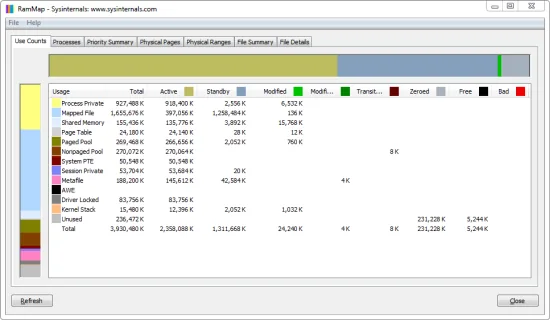
For the official RAMMap package and version facts, use the Microsoft Sysinternals RAMMap guide rather than an unrelated mirror.
How to choose a RAM cleaner safely
A safe choice is a small experiment with a recorded starting point. Do not begin with a scheduled task or a permanently running purge. First decide what symptom you can reproduce: a stutter in the same game area, a slow application switch, a warning about low memory or a measurable rise in commit usage. If the symptom is not repeatable, a RAM cleaner cannot give you a reliable before-and-after result.
When you test, keep the workload, power mode, display settings and background applications as consistent as possible. Record available memory, standby size, commit use and the time of the symptom. Then change one thing. A result that disappears after a single run is a clue, not a conclusion. Repeat it two or three times before changing another setting.
- 1
Record the baseline
Use Task Manager during the workload. Note the lowest available memory, standby behavior, commit pressure and the exact symptom.
- 2
Identify the memory class
Use RAMMap when the summary is not enough. Separate standby cache from active processes, file-backed pages and driver-related allocations.
- 3
Pick one reversible method
Use RAMMap for a one-time manual comparison or ISLC for measured threshold monitoring. Do not combine several cleaners in the same test.
- 4
Repeat the same workload
Compare like with like and record whether the symptom changes. If it does not, stop escalating the cleaner settings.
- 5
Keep or remove the tool deliberately
Disable startup tasks and undo optional timer settings when the experiment is finished. Keep a tool only when the measured benefit is repeatable and worth the tradeoff.
A RAM cleaner should make the memory question clearer, not hide the original symptom behind repeated background actions.
When ISLC is the right Windows 11 RAM cleaner
ISLC is a sensible choice when you have observed a repeatable pattern: the standby list becomes meaningfully large, available memory falls below a level that matters for the workload and the same symptom appears around that time. ISLC can monitor those conditions and request a purge only when its two thresholds are met. That is more explainable than a timer that clears memory every few minutes regardless of system state.
The current publisher release checked for this guide is ISLC 1.0.4.8. The portable and installer files are hosted by Wagnardsoft; the existing version guide records the verified file facts. If you use ISLC, verify the publisher file, place it in a stable folder and review the ISLC settings guide before enabling startup or custom timer behavior.
There is no universal 16 GB, 32 GB or 64 GB preset that can be called the best ISLC setting for every Windows 11 PC. Start with a moderate polling interval, leave custom timer resolution disabled for the memory test and choose thresholds from your own baseline. If ISLC never purges and the system is stable, that may be the correct outcome.
- Verify the current Wagnardsoft version and SHA-256 before running the executable.
- Use thresholds that represent actual pressure, not ordinary light desktop use.
- Keep the timer-resolution feature separate from the RAM-cleaning experiment.
- Read the ISLC first-run workflow before creating a Windows startup task.
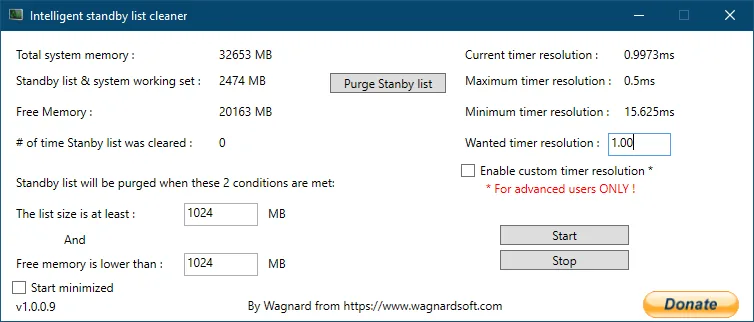
ISLC monitors and requests a conditional purge. It does not replace physical RAM, repair a memory leak or guarantee higher FPS.
RAM cleaner mistakes to avoid
The most common mistake is confusing a visible number with a diagnosis. Cached or standby memory can be useful, and Windows may refill it after a purge. A second mistake is running a cleaner too often. Repeatedly discarding cache can create extra disk reads and make a comparison less stable. The right frequency is the one supported by a repeatable symptom, not the smallest interval offered by a tool.
Avoid downloading an executable from a page that cannot identify its publisher, package, version and file identity. For ISLC, use the publisher-hosted links and checksums recorded on this site. For RAMMap, use the Microsoft Sysinternals page and official ZIP. For EmptyStandbyList.exe, the filename alone is not proof of authenticity; the existing Empty Standby List guide explains the evidence gap.
Do not run ISLC, RAMMap, EmptyStandbyList.exe and another cleaner at the same time while trying to attribute an improvement. Use one method, keep a baseline and stop if the result is not repeatable.
- Do not promise an FPS increase from a cache purge.
- Do not schedule a purge every few minutes without a measured reason.
- Do not disable security controls broadly to make an unknown download run.
- Do not move a portable ISLC folder after creating startup behavior without reviewing the task path.
If a tool changes memory but the original workload is not better, treat that as a valid test result and stop.
When Windows 11 does not need a RAM cleaner
If available memory remains healthy and the application is slow, look elsewhere first. A process leak, a driver allocation, a full page file, storage latency, a background scan, a graphics bottleneck or insufficient physical RAM can all be described loosely as ‘bad memory’. RAMMap can help narrow the category, but it cannot repair those causes automatically.
A RAM cleaner is also the wrong answer when the goal is to remove ordinary cached data before every game. Windows may already be doing the useful work. Keep the system unchanged when the baseline is stable, and use the ISLC troubleshooting guide when the utility itself is showing zero values, not purging or failing to start.
Leaving a stable Windows memory configuration alone is often better than adding a background cleaner without a measured problem.
RAM Cleaner for Windows 11 FAQ
Is a RAM cleaner safe on Windows 11?
It depends on the tool and the action. Prefer a publisher-identified file, record a baseline, use one reversible test and avoid scheduled purges until you understand the memory condition. A matching hash supports file identity but is not a universal safety guarantee.
Does a RAM cleaner increase FPS?
Not automatically. A purge can change standby memory, but it cannot replace physical RAM, fix a game engine, repair a driver or remove every source of stutter. Measure the same workload before and after and keep the result only if it repeats.
What is the best free RAM cleaner for Windows 11?
There is no universal winner. Use Task Manager first, RAMMap for detailed diagnosis and ISLC when you have repeatable standby pressure that benefits from thresholds. Avoid choosing a tool only because a page promises a large performance gain.
Is ISLC a RAM cleaner?
ISLC is a standby-list monitoring utility that can request a purge when its configured standby and free-memory conditions are both met. It is narrower and more measurable than a generic one-click system cleaner.
Should I use RAMMap or ISLC?
Use RAMMap when you need to understand which memory categories are involved or want one manual comparison. Use ISLC when the condition is repeatable and you want visible thresholds and background monitoring. Many users should start with RAMMap or Task Manager before adding automation.
How do I clean RAM on a Windows 11 laptop?
First reproduce the problem and inspect available memory, standby memory and active processes. A laptop may be power- or storage-limited, so do not assume that clearing cache is useful. If a controlled test points to standby pressure, follow the Windows 11 cache guide or compare RAMMap and ISLC carefully.
Official software references
Version and download statements on this page are tied to publisher-controlled sources checked on September 18, 2026.
- Wagnardsoft ISLC release and support thread — Current ISLC 1.0.4.8 release facts, publisher links and change history.
- Microsoft Sysinternals RAMMap — Official RAMMap v1.63 description, publication information and download route.
- Official RAMMap ZIP — Publisher-hosted archive used for the verified package response.