

For RAMMap not responding, first wait briefly for the initial memory scan, then close the process and extract the verified v1.63 archive to a stable folder. Run the architecture-matched executable, retry as administrator only when the view or action needs it, and temporarily isolate overlays or security filters. Record Task Manager values before using Empty > Empty Standby List. If RAMMap still freezes while another Windows workload is normal, treat it as a tool-startup problem rather than proof that your RAM needs cleaning.
Use the official RAMMap package
The troubleshooting steps assume an unmodified Microsoft Sysinternals archive. Use the publisher page or the verified ZIP below; do not replace a frozen copy with an unknown repackaged executable.
Download RAMMap.zip (official)Checked August 7, 2026: HTTP 200, application/octet-stream, 737,190 bytes; the archive contains RAMMap.exe, RAMMap64.exe, RAMMap64a.exe and Eula.txt. The Microsoft page lists v1.63.Is RAMMap frozen or just slow?
A large physical-memory scan can take longer than a small utility window suggests, especially immediately after launch or when the system is busy. A title-bar message such as RAMMap not responding is not enough to prove that the process has failed. Give the first scan a short, bounded wait while watching whether the process remains present and whether the rest of Windows continues to respond.
Close the tool and reopen it when the window stays blank, the tabs never populate after a reasonable wait, or the process repeatedly stops responding on the same machine. Do not click several Empty commands while the display is incomplete. A partial view cannot give you a reliable before-and-after memory baseline.
- Slow first scan: the window eventually fills with Use Counts or tab data.
- Likely startup failure: the same blank window returns after a clean relaunch.
- Likely environment conflict: RAMMap freezes only while a capture, overlay, monitor or security filter is active.
- Separate symptom: RAMMap opens, but a single tab or Empty action stalls; that is different from a launch failure.
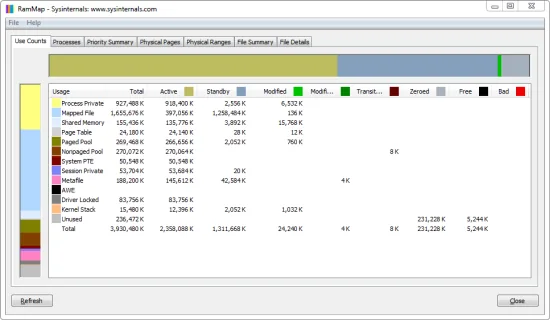
Do not interpret a temporary not-responding label as evidence that standby memory is the cause of a performance problem.
Verify RAMMap v1.63 and the correct build
The Microsoft Sysinternals page checked for this guide lists RAMMap v1.63. Keep the original ZIP, extract it to a stable folder and launch the executable that matches the Windows architecture. A temporary download directory, a damaged extraction or an architecture mismatch can make a troubleshooting result difficult to interpret even when the filename looks correct.
The archive contains RAMMap.exe, RAMMap64.exe and RAMMap64a.exe. On a normal 64-bit Windows installation, RAMMap64.exe is the usual starting point; choose another build only when it matches the platform documented by your Windows installation. If you are unsure, confirm System type in Windows Settings before retrying.
- Keep the ZIP from Microsoft Sysinternals until the test is complete.
- Extract to a permanent local folder rather than a browser cache or temporary directory.
- Use the architecture-matched executable and avoid renaming files during diagnosis.
- If a mirror supplies a different version or extra DLLs, discard it and return to the official page.
- 1
Close the old copy
End the unresponsive RAMMap process from Task Manager if the window cannot close normally.
- 2
Keep the official archive
Use the verified Microsoft ZIP and record its version before extracting it.
- 3
Extract to a stable path
Choose a folder that will not be moved during the test, such as a dedicated tools directory.
- 4
Start the matching executable
Try RAMMap64.exe on a standard 64-bit Windows installation and preserve the original filenames.
- 5
Record the first complete view
Wait for Use Counts to populate before changing a list or comparing another tool.

The publisher's page label is 719 KB while the verified HTTP response was 737,190 bytes. Keep those source-specific facts separate.
Isolate overlays, filters and competing tools
If RAMMap opens normally on a clean desktop but freezes when a game overlay, hardware monitor, screen capture, backup filter or other memory utility is active, treat the overlap as a testable conflict. Close one candidate at a time, relaunch RAMMap and record the result. This is more useful than disabling several protections at once because it preserves a clear cause-and-effect trail.
Do not run RAMMap, ISLC and EmptyStandbyList.exe together during the first test. Each tool changes how you observe or alter memory, so simultaneous use can make a stall look like a memory problem. After RAMMap is stable, use the ISLC settings guide only for a separate, measured comparison.
| Possible conflict | Controlled test | What the result means |
|---|---|---|
| Game or desktop overlay | Close the overlay, relaunch RAMMap, repeat the same workload | A change suggests an interaction; it does not identify the exact component yet |
| Screen capture or hardware monitor | Stop one capture or monitor process at a time | A stable launch after one stop narrows the next check |
| Security or file filter | Review the event log and test the official file without adding a broad exclusion | A block or quarantine event needs the security product's documented action |
| Another memory utility | Exit ISLC or a scheduled EmptyStandbyList command before launching RAMMap | One observer/action at a time gives you a readable baseline |
Only change one environment variable per retry. A clean result is evidence about the setup, not proof that RAMMap is universally compatible.
Capture a baseline before using Empty
Once RAMMap displays a complete view, record the same workload's Task Manager Available, Committed and Cached values, plus the relevant RAMMap categories. Reproduce the symptom before taking an action. If the problem is a process leak, driver allocation, page-file pressure or insufficient physical RAM, emptying the standby list will not fix the cause.
If a controlled comparison specifically points to reclaimable standby pages, open the Empty menu and choose only Empty Standby List once. Wait for the display to refresh, repeat the same workload and compare the result. The cache may rebuild because Windows uses cached files and code; a rebuilt standby list is not automatically a failed action.
- Write down the pre-test state before clicking an Empty command.
- Use one manual Empty Standby List comparison, not a sequence of list-clearing actions.
- Stop after two or three repeatable comparisons show no meaningful improvement.
- If the window freezes again during the action, return to startup and permissions checks.
- 1
Measure first
Record Task Manager and RAMMap values while the symptom is reproducible.
- 2
Change one thing
Use only Empty Standby List for the comparison; leave other Empty commands alone.
- 3
Repeat the workload
Use the same game scene, project, virtual machine or browser steps.
- 4
Keep or reject the hypothesis
Continue only when the result is repeatable; otherwise investigate another layer of the system.
| Observation | Safer interpretation | Next action |
|---|---|---|
| RAMMap opens and the standby list is large | A large cache is not automatically harmful | Compare available memory, paging and the repeatable workload |
| RAMMap opens but the same workload still stutters | The cache may not be the bottleneck | Check the process, driver, storage or hardware path |
| RAMMap freezes only during Empty | The action or environment needs isolation | Stop, relaunch cleanly and do not schedule the action |
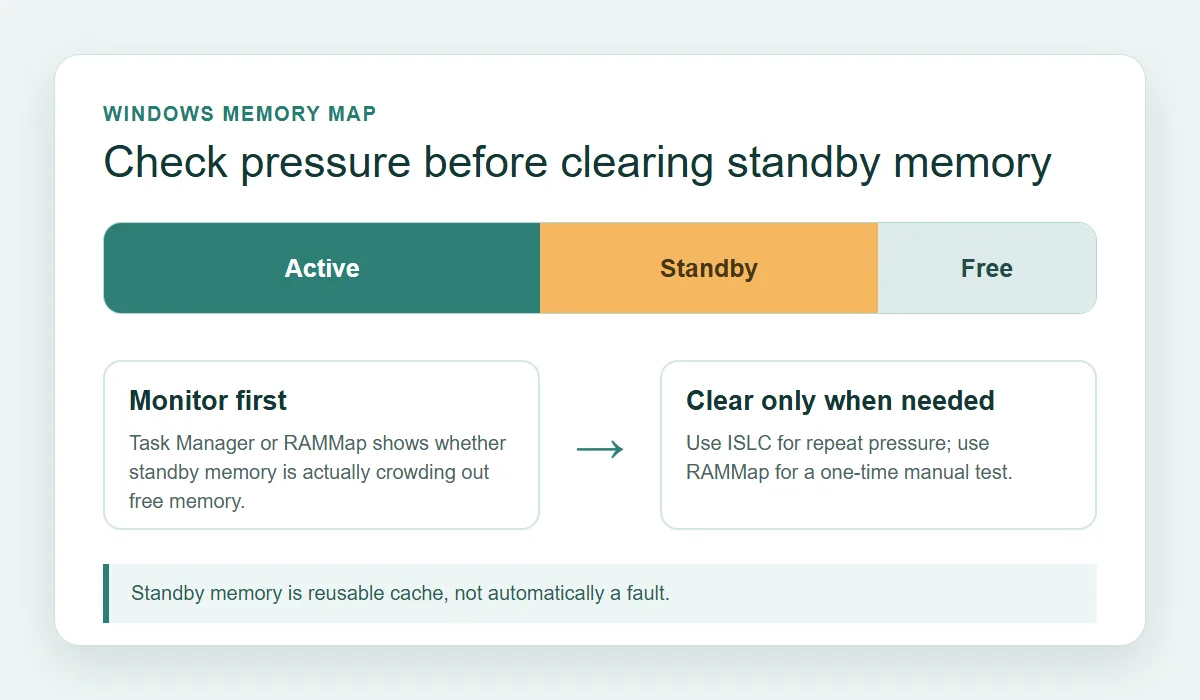
RAMMap is primarily a diagnostic utility. A successful Empty action does not prove that standby memory caused the original symptom.
RAMMap troubleshooting FAQ
Why is RAMMap not responding?
The first scan may be slow, the wrong architecture build may be running, the file may need a controlled administrator retry, or an overlay, monitor or security filter may be interfering. Isolate one variable at a time before changing memory settings.
Does RAMMap work on Windows 11?
The Microsoft Sysinternals page lists RAMMap for supported Windows versions, and this site verified the v1.63 archive on August 7, 2026. Use the matching executable, keep the archive from Microsoft and test the tool in a stable folder.
How do I fix a blank or frozen RAMMap window?
Wait briefly for the initial scan, close the old process, extract the official archive again to a stable folder, launch the architecture-matched build and perform one controlled administrator retry. If the result changes only after closing an overlay or filter, investigate that interaction instead of clearing RAM.
Should I run RAMMap as administrator?
Use administrator launch as a diagnostic comparison when a view or action appears permission-limited. It is not a reason to grant every memory tool permanent elevated access or to create broad security exclusions.
Is RAMMap better than ISLC?
RAMMap is better for inspecting physical-memory categories and documenting one manual test. ISLC is a separate threshold-based monitor for cases where repeated evidence supports conditional standby-list purging. They should not be run together during the first diagnosis.
Official RAMMap references
Version, package and utility claims on this page are tied to Microsoft Sysinternals sources checked on August 7, 2026.
- Microsoft Sysinternals RAMMap — Official RAMMap v1.63 page, supported-platform description and publisher download link.
- Official RAMMap.zip — Publisher-hosted archive used for the HTTP, MIME, size and ZIP-entry verification.
- Sysinternals Live RAMMap — Microsoft's alternative live-run endpoint listed with Sysinternals tools.