
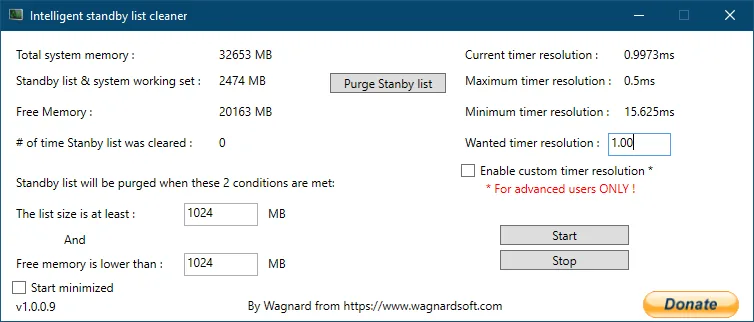
To set up ISLC to launch on startup, finish extracting the verified publisher build to a folder that will not move, open ISLC, enable its launch-on-user-logon and start-minimized options, then check Task Scheduler for a task whose action points to that exact executable. Restart Windows once, confirm the tray process and changing readings, and remove the task before deleting the folder.
How to Set Up ISLC to Launch on Startup in ISLC
To understand how to set up ISLC to launch on startup, use the options already exposed by ISLC. This keeps the executable path and task name close to the application settings instead of asking you to paste a long command with thresholds you have not measured. The exact wording can move between releases, but the intent is the same: start ISLC when the user logs on and keep it minimized only after the visible test works.
Startup controls and purge thresholds solve different problems. Leave untested values unchanged, and use the ISLC settings guide when you are ready to evaluate thresholds or polling behavior.
- 1
Open the verified build
Run ISLC from the permanent folder with the main window visible. If Windows shows a security prompt, confirm the file identity before allowing it.
- 2
Confirm monitoring is understandable
Check that total memory, standby-list size and free-memory values are populated and change as the workload changes. Zero values or an immediate close belong in troubleshooting first.
- 3
Enable launch on user logon
Select the ISLC option that creates or enables its Windows logon task. Read the nearby label so you do not confuse it with Start minimized or automatic monitoring.
- 4
Choose Start minimized only when ready
Enable minimized behavior after you know how to reopen the tray application and stop monitoring.
- 5
Inspect the task
Exit normally, then open Task Scheduler and inspect the task before restarting Windows.
If the task is created while the portable folder is temporary, move the files first and recreate the task. Do not repair a wrong path with a second duplicate task.
Verify the ISLC task in Task Scheduler
The Task Scheduler check is the part of how to set up ISLC to launch on startup that prevents stale paths. Open Task Scheduler, find the task created by ISLC and read its Actions entry. The program path should match the executable you opened, including the drive, folder and filename. If the action points to an old version folder, the task is stale even if the task status says Ready.
Check the trigger and security context as well as the action. A user-logon trigger should match your account, and the task should not contain an unexpected program or argument. Use History or Last Run Result to separate a trigger problem from an application problem.
If ISLC starts too early and a short login pause appears, the Wagnardsoft support thread suggests testing a small Task Scheduler delay. Treat it as a troubleshooting option, not a universal value, and change it only after the path is verified.
- Action path matches the permanent ISLC executable.
- Trigger is the intended user-logon event.
- Arguments and run-as settings contain no unexpected values.
- Last Run Result and History show whether Windows launched the task.
| Task Scheduler field | What to compare | If it does not match |
|---|---|---|
| Actions | Program path and optional arguments | Disable the task and recreate it from the current ISLC folder |
| Triggers | User logon and intended account | Remove duplicate triggers or correct the account |
| History / Last Run Result | Whether Windows launched and returned an error | Capture the code before changing settings |
Do not use Task Scheduler to hide a missing executable. Fix the path or recreate the application-created task so future updates remain understandable.
Repair startup after moving a portable ISLC folder
Moving a portable folder is the most common reason a previously working startup task stops launching. Windows keeps the old action path, while the file now lives somewhere else. The tray icon may disappear with no useful message because the task is still valid as a Windows object; it simply cannot start the old target.
Stop ISLC before moving or replacing its files. Keep one final folder, verify the current executable there and then use the ISLC startup option to disable and re-enable the task. This gives the application a chance to write the new path. Check Task Scheduler again instead of assuming the repair succeeded.
If a task still points to a deleted folder, disable or delete it after recording its action, then create one clean task from the current build.
- 1
Exit the tray process
Use the ISLC exit command and confirm that no old ISLC process remains in Task Manager.
- 2
Choose the final folder
Place the complete portable directory where it can remain and record the exact executable path.
- 3
Recreate one task
Open ISLC, turn its launch-on-logon option off, apply the change, then turn it on again from the final path.
- 4
Test a normal sign-in
Restart Windows once, use the tray command to show the UI and compare the displayed path and readings.
If the current build opens manually but not at logon, capture Task Scheduler's Last Run Result and the action path before changing antivirus or administrator settings.
When to add a delay or disable startup
Startup is not a performance guarantee. A task that begins before a driver, game launcher or security scan can make a short login pause easier to notice. If the computer freezes briefly only when ISLC starts, compare one reboot with the task disabled, then inspect the task path and timer setting. Do not assume that a lower timer value or an earlier trigger is the fix.
A small documented Task Scheduler delay can isolate startup order after the path and version are verified. Reboot and compare the same sign-in sequence; remove the delay if it changes nothing. Disable startup when the workload no longer reproduces the symptom or a controlled comparison shows no benefit.
- Compare startup enabled and disabled with the same Windows session conditions.
- Change one trigger setting at a time and record the result.
- Keep a delay only when the benefit repeats and the task still starts before the workload.
- Disable startup before deleting the portable folder.
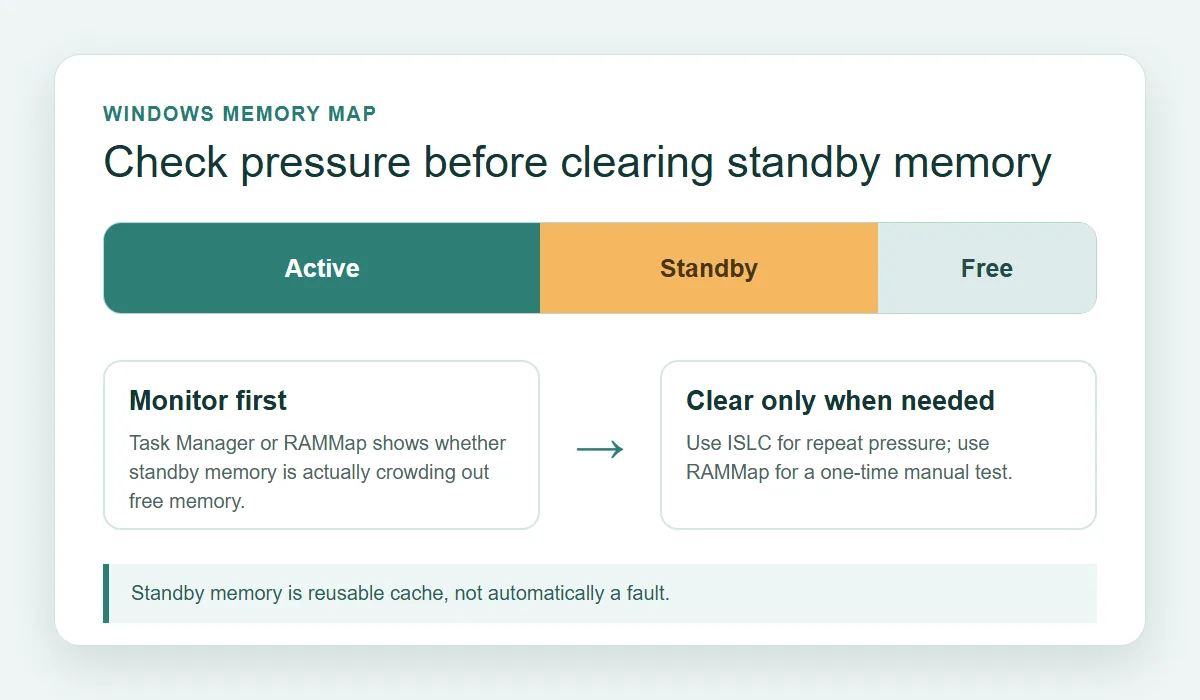
A startup task should reduce repetitive opening, not turn an unmeasured cache-clearing idea into an always-on rule.
Test the result and remove ISLC cleanly
The last part of how to set up ISLC to launch on startup is a normal sign-in test. Look for the ISLC tray icon, use Show UI and confirm that the readings update. Run the same workload you used before startup was enabled. Note the time of sign-in, whether the task ran, the purge count, available memory and the symptom you are measuring. One successful launch proves the task started; it does not prove that a purge improved the workload.
If startup fails, separate the layers: a missing icon can mean the task did not trigger, the path is stale or ISLC started minimized. Capture the state first, then use the troubleshooting guide for the matching symptom. To remove the setup, disable launch on logon, confirm the task is disabled or gone, exit the tray process and only then remove the folder.
- 1
Check the first sign-in
Confirm the task ran, the tray icon exists and the main window can be shown.
- 2
Repeat one workload
Compare the same game scene or application sequence with the same ISLC settings.
- 3
Disable before removal
Turn off launch on user logon, verify the task state and exit ISLC.
- 4
Keep the rollback path
Remove only the folder you no longer need and retain the official source link for a future clean install.
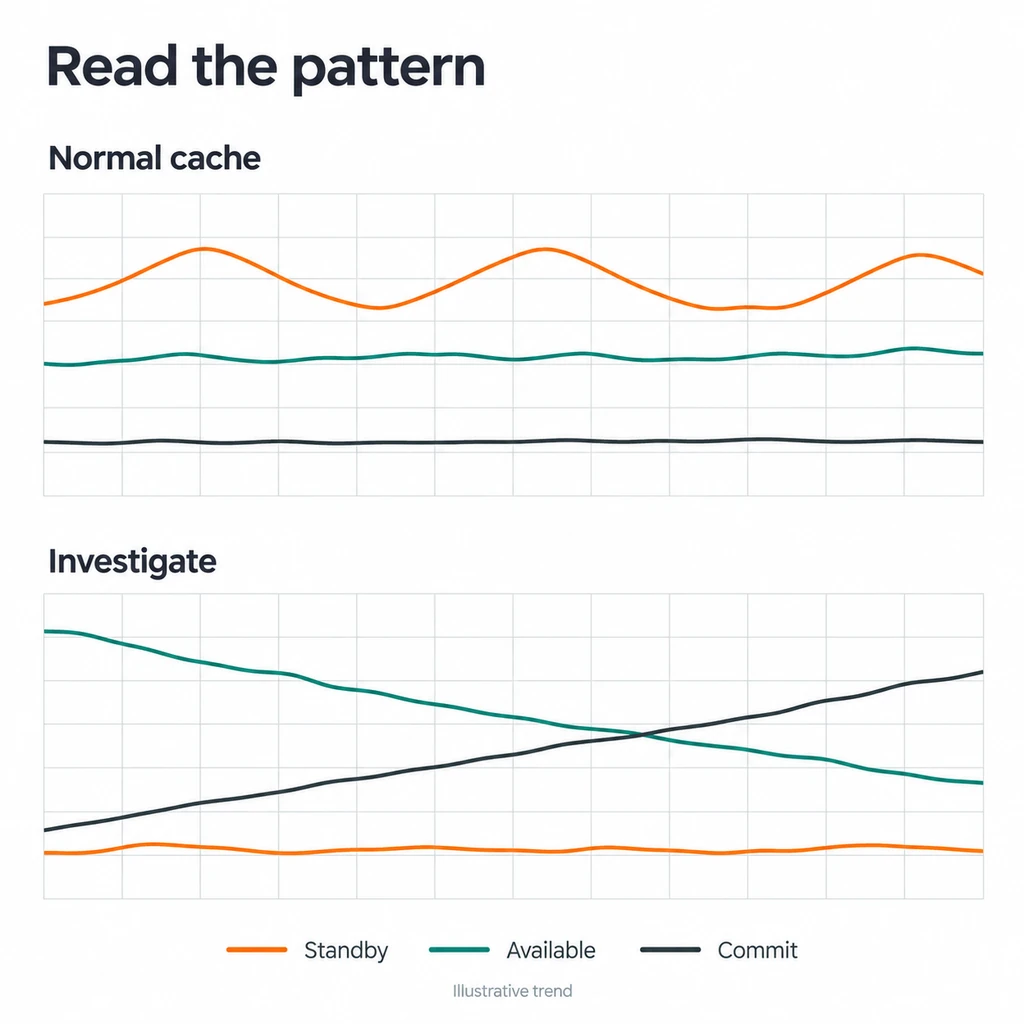
A neutral or negative test result is useful. It tells you to remove unnecessary background behavior instead of tuning a startup task forever.
ISLC startup task FAQ
How do I set up ISLC to launch on startup?
Place the verified build in a permanent folder, open ISLC, enable its launch-on-user-logon option and verify the resulting Task Scheduler action points to that exact executable. Restart Windows once before enabling more advanced settings.
Does ISLC need Task Scheduler to start with Windows?
The built-in launch-on-user-logon option uses Windows startup task behavior. Task Scheduler is the place to verify the trigger, action path, arguments and last-run result; do not add a second method unless you have a documented reason.
Why did ISLC stop starting after I moved the folder?
The task usually still points to the old executable path. Exit ISLC, choose the final folder, disable and re-enable its startup option, then confirm the new action path in Task Scheduler.
Should ISLC start minimized?
Only after a visible first run works and you know how to use the tray command to show the UI. Starting minimized hides useful evidence when memory readings are zero or the program closes.
Can I add a startup delay to ISLC?
A small documented delay can help isolate startup-order or login-freeze symptoms after the path and version are verified. It is not a universal performance setting, so compare the same sign-in sequence with and without it.
How do I remove the ISLC startup task?
Disable the launch-on-user-logon option, confirm the Task Scheduler task is disabled or removed, exit the tray process and only then delete the portable folder. This prevents Windows from calling a missing executable.
Startup and version references
The setup flow uses the current publisher thread for release context and Windows documentation for task behavior. Community pages were used only to identify common questions and failure patterns.
- Wagnardsoft ISLC release and support thread — Publisher-controlled release history, current package links and startup-related support discussion.
- Microsoft Task Scheduler examples — Official background on scheduled-task triggers and actions.
- Community startup walkthrough — A community example used to understand the setup question; its fixed thresholds are not treated as universal recommendations.