
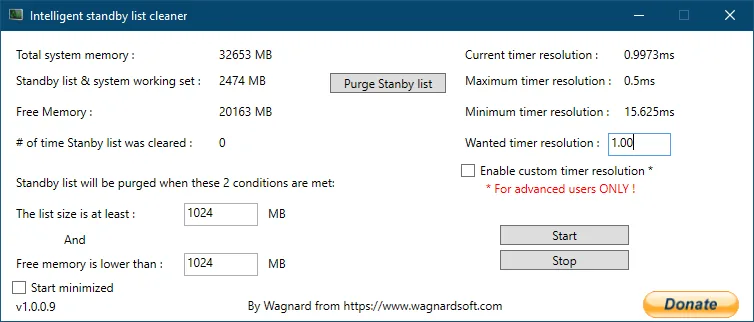
Start with a moderate ISLC polling interval, leave it unchanged while you establish a baseline, and shorten it only when a repeatable workload reaches both purge conditions between checks. A lower number is not an FPS score and does not prove lower input latency. Compare the same workload with the same standby-list and free-memory thresholds, record purge frequency and background CPU behavior, and keep the change only when it produces a repeatable benefit.
What the ISLC polling rate changes
Polling rate is a monitoring interval, not a memory amount. ISLC wakes at that interval, reads the current standby-list and free-memory values, and checks whether the conditions for a purge are true. When both conditions are satisfied, the utility can request the action. When only one condition is true, checking more frequently does not make the missing condition true.
The timing difference is therefore about observation and reaction. A long interval may wait longer to notice that a threshold has been crossed. A short interval may notice sooner, but it also increases the number of checks during a long session. Windows already manages standby memory as a cache, so the goal is not to make the list empty after every check. It is to make the monitoring rule understandable and proportionate to the problem you are testing.
- The interval controls how often ISLC reads the relevant values.
- A purge still depends on the standby-list and free-memory conditions together.
- Shorter checks can reduce detection delay but increase wakeups and process activity.
- The interval does not directly set game FPS, input latency or timer resolution.
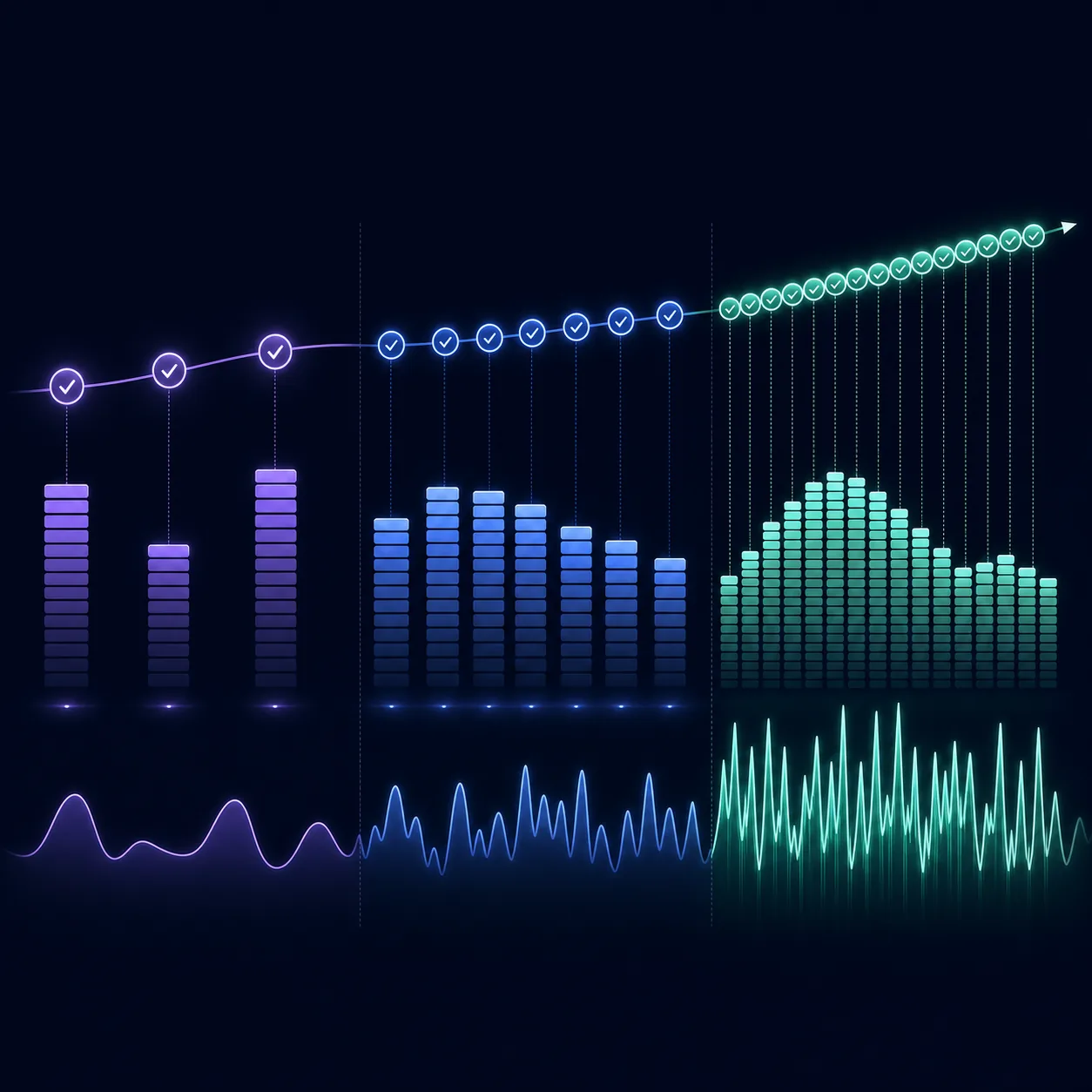
Do not judge a polling interval from the number alone. Judge it from the delay you can observe and the background work you can measure.
How to choose a starting interval
There is no universal best ISLC polling rate for every PC. A gaming desktop, a laptop on battery, and a workstation running a long render can have different priorities. Begin with the moderate value already available in the current interface and leave the thresholds unchanged. This gives you a baseline that can be explained before you test a shorter or longer interval.
If the workload changes slowly and the system is stable, a longer interval may be adequate. If the issue is brief, repeatable and clearly occurs after both memory conditions are reached, a shorter interval may reduce the time before ISLC notices it. That is a testable hypothesis, not a promise. The broader ISLC settings guide covers thresholds, RAM capacity and timer controls; this page isolates the check interval so those variables do not get mixed together.
Avoid copying a polling number from a screenshot or a forum preset without recording why it was chosen. The same number can be harmless on one system and unnecessary on another. The best starting interval is the one that lets you compare two controlled runs and revert cleanly when the result is neutral.
| Approach | When it fits | Trade-off to watch |
|---|---|---|
| Moderate interval | First setup, ordinary monitoring and a stable PC | Balanced detection and background activity |
| Shorter interval | A repeatable event reaches both thresholds between checks | More frequent reads; measure CPU and power behavior |
| Longer interval | Background monitoring where an immediate response is not important | A longer delay after conditions become true |
Use the interval as a monitoring choice. Do not describe it as a guaranteed performance preset.
Polling rate, CPU use and low 1% FPS claims
A shorter interval means more opportunities for ISLC to read memory during the same period. The work may be small, but the correct question is whether it is measurable on your system and whether the extra checks coincide with any useful change. A benchmark result that changes after several settings were altered cannot tell you what the polling rate did.
Low 1% FPS is affected by many layers: game thread scheduling, asset streaming, shader compilation, drivers, storage and available memory. ISLC polling rate does not directly control those layers. If you see a change after adjusting it, repeat the same scene or route, keep the game settings fixed, and record whether the purge count and memory pattern also changed.
Do not use a very short interval as a substitute for diagnosing a memory leak or a process that steadily grows. Frequent checks can make a symptom look more active while leaving the cause untouched. If the issue appears on battery, include power mode and battery drain in the comparison; a small frame-time difference may not justify continuous background work.
- Compare frame-time consistency, not only an average FPS headline.
- Record purge count, available memory and standby-list size beside the game result.
- Keep the graphics driver, game scene, power mode and other ISLC values fixed.
- Treat a claimed latency improvement as system-specific until it repeats.
A lower polling number is not automatically a faster game. It is only a more frequent observation schedule.
A repeatable ISLC polling-rate test
A useful test changes one variable and keeps the workload recognizable. Start ISLC with the interface visible, note the current interval and thresholds, and reproduce the same game area, application task or multitasking sequence without changing the polling rate. Record available memory, standby-list size, purge count, frame-time behavior when relevant, and any visible CPU or power difference.
After the baseline, change only the polling interval and repeat the same sequence several times. Do not change timer resolution, startup, RAM thresholds and polling rate in one pass. If the result is not repeatable, return to the baseline instead of keeping the more aggressive value because one run looked better. The ISLC troubleshooting guide is useful when the monitor shows zero values or never purges; the Windows memory guide explains why clearing a cache is not always necessary.
- 1
Record the baseline
Write down the current polling interval, thresholds, timer state, power mode and workload.
- 2
Reproduce the same scenario
Use the same game location, application file, render step or multitasking sequence.
- 3
Change only polling
Keep thresholds, timer resolution, startup and other background conditions unchanged.
- 4
Measure the result
Compare frame-time behavior, purge count, memory readings, CPU activity and power behavior where relevant.
- 5
Revert or keep deliberately
Keep the new interval only when the benefit is repeatable and the trade-off is acceptable.
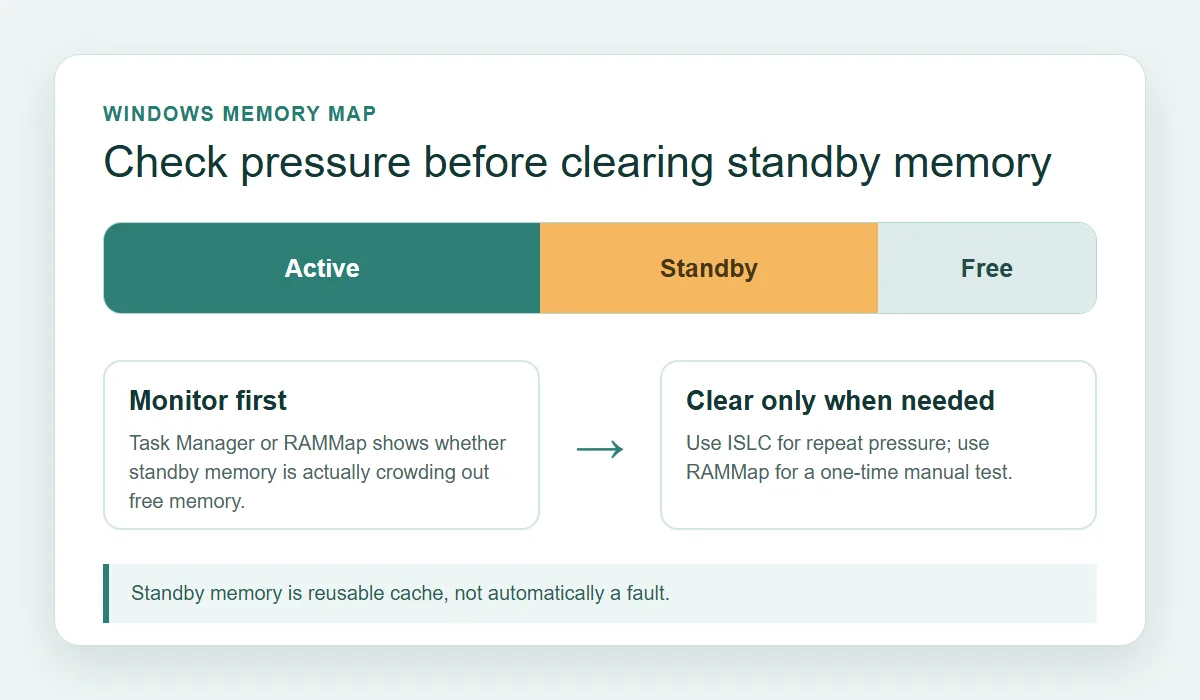
If the baseline is already stable, a neutral result is valuable. It tells you not to keep an aggressive interval without evidence.
How polling interacts with thresholds and timer resolution
Polling does not replace the two memory thresholds. ISLC needs the standby-list threshold and the free-memory threshold to be true at the same check before the automatic purge rule can act. If the list is large but available memory is healthy, faster checks will simply confirm that the second condition is not met. If free memory is low but the standby list is below its threshold, the result is the same.
Timer resolution is a separate advanced control. A custom timer request changes a timing-related setting; it is not another polling interval and it should not be enabled just to make the monitor feel faster. Test timer behavior separately, with a clear reason and a way to return to the previous state. On Windows 11, review the Windows 11 compatibility guide before combining timer experiments with memory tests.
For 16GB, 32GB or larger systems, capacity can change the memory pattern, but it does not create a universal polling preset. Measure the workload first, choose conservative thresholds, and then decide whether the check schedule needs to react sooner. Keep the configuration note that explains the decision so a future update or hardware change does not turn it into a mystery preset.
- Polling observes thresholds; it does not change what the thresholds mean.
- Timer resolution and polling interval should be tested as separate variables.
- Installed RAM is context for memory behavior, not a fixed interval formula.
- A clear configuration note makes later troubleshooting safer.
The most defensible ISLC setting is the one tied to a measured workload and an easy rollback path.
When not to lower the ISLC polling rate
Do not lower the interval just because a forum screenshot uses a smaller number. Leave it alone when the PC is stable, when ISLC rarely reaches both thresholds, when the utility is running on battery, or when you cannot reproduce the original symptom. More checks are not automatically more protection from stutter, and repeated purges can remove useful cache without solving the real problem.
If a shorter interval appears to help, keep the evidence: workload, date, current build, thresholds, purge count, frame-time notes and power mode. If a Windows update, game patch or hardware change alters the result, repeat the baseline before adding another tweak. That habit keeps polling rate in its proper role: a small monitoring decision inside a measured troubleshooting process.
If you cannot state what the shorter interval fixed, return to the moderate baseline.
ISLC polling rate FAQ
What is the best ISLC polling rate?
There is no universal best value. Start with a moderate interval, keep the thresholds stable, and shorten it only when a repeatable workload reaches both conditions between checks and the faster response produces a measurable benefit.
Does a lower ISLC polling rate improve FPS?
Not automatically. Polling changes how often ISLC checks memory; it does not directly control game rendering or input latency. Repeat the same scene and compare frame-time behavior, memory readings and purge count before making that claim.
Can a short polling interval increase CPU use?
It can create more frequent checks and wakeups. The size of the effect depends on the system, so measure CPU activity and power behavior instead of assuming that every short interval is expensive or harmless.
Should I change polling rate or memory thresholds first?
Establish the thresholds and a baseline first. Change one variable at a time. If the memory conditions are not real or repeatable, changing the polling schedule will not fix the underlying issue.
Is polling rate the same as timer resolution?
No. Polling is the schedule for reading memory values. Timer resolution is a separate advanced timing control and should be tested independently.
What if ISLC never purges after I change the interval?
Check whether the standby-list and free-memory conditions are true at the same time, confirm monitoring is started, and review the troubleshooting guide. A lack of purges can mean the configuration is stable rather than broken.
Should laptop users use a shorter polling rate?
Not by default. Include battery life, power mode and heat in the test. A faster check schedule is only worthwhile when the workload has a repeatable need for earlier detection.
Official ISLC references
The page separates publisher facts from practical testing advice. Use these Wagnardsoft-controlled sources for the current utility and release context.
- Wagnardsoft ISLC release and support material — Publisher release notes, downloads and support history.
- Wagnardsoft ISLC software page — Current publisher overview for Intelligent Standby List Cleaner.